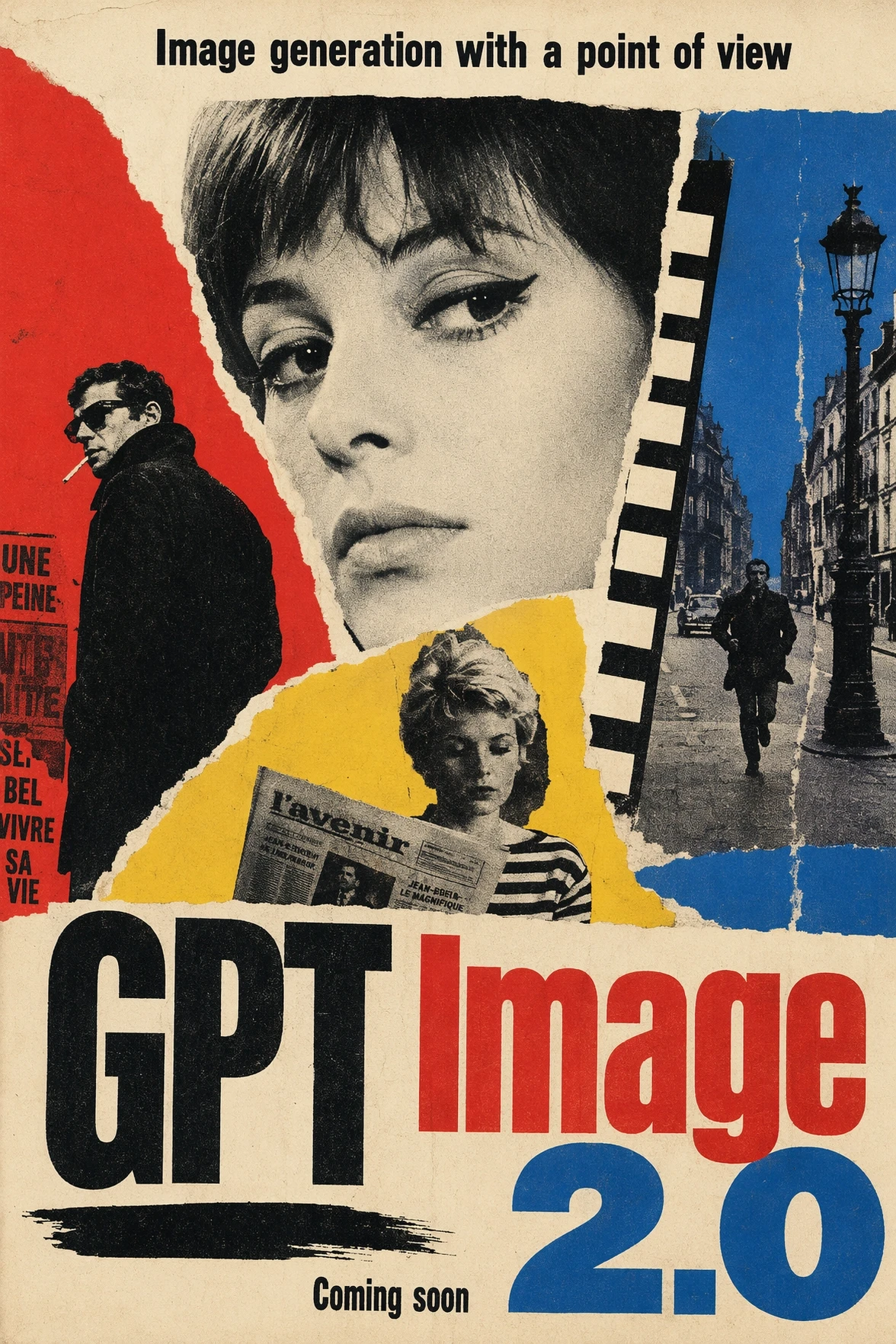
Best uses for GPT Image 2.6
Create product detail animations, community stickers, campaign banners and social visuals. Use SVG for static website icons, brand concepts and line art.

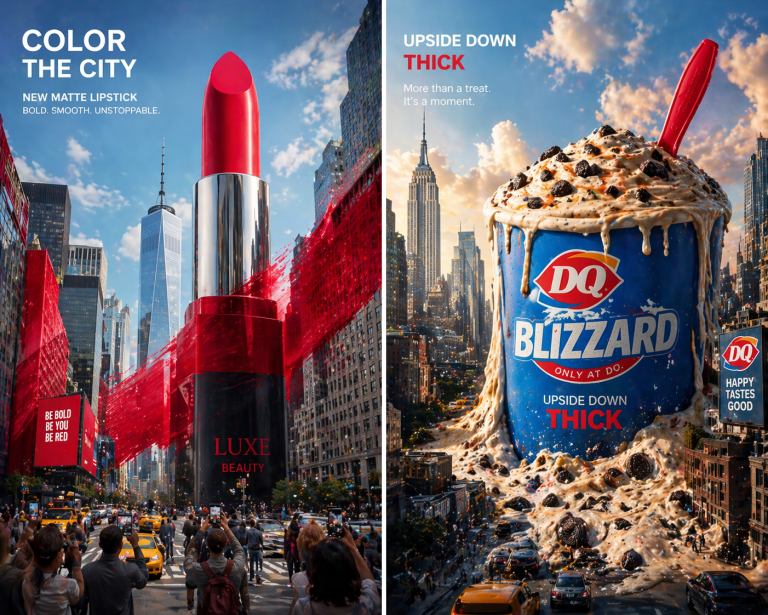
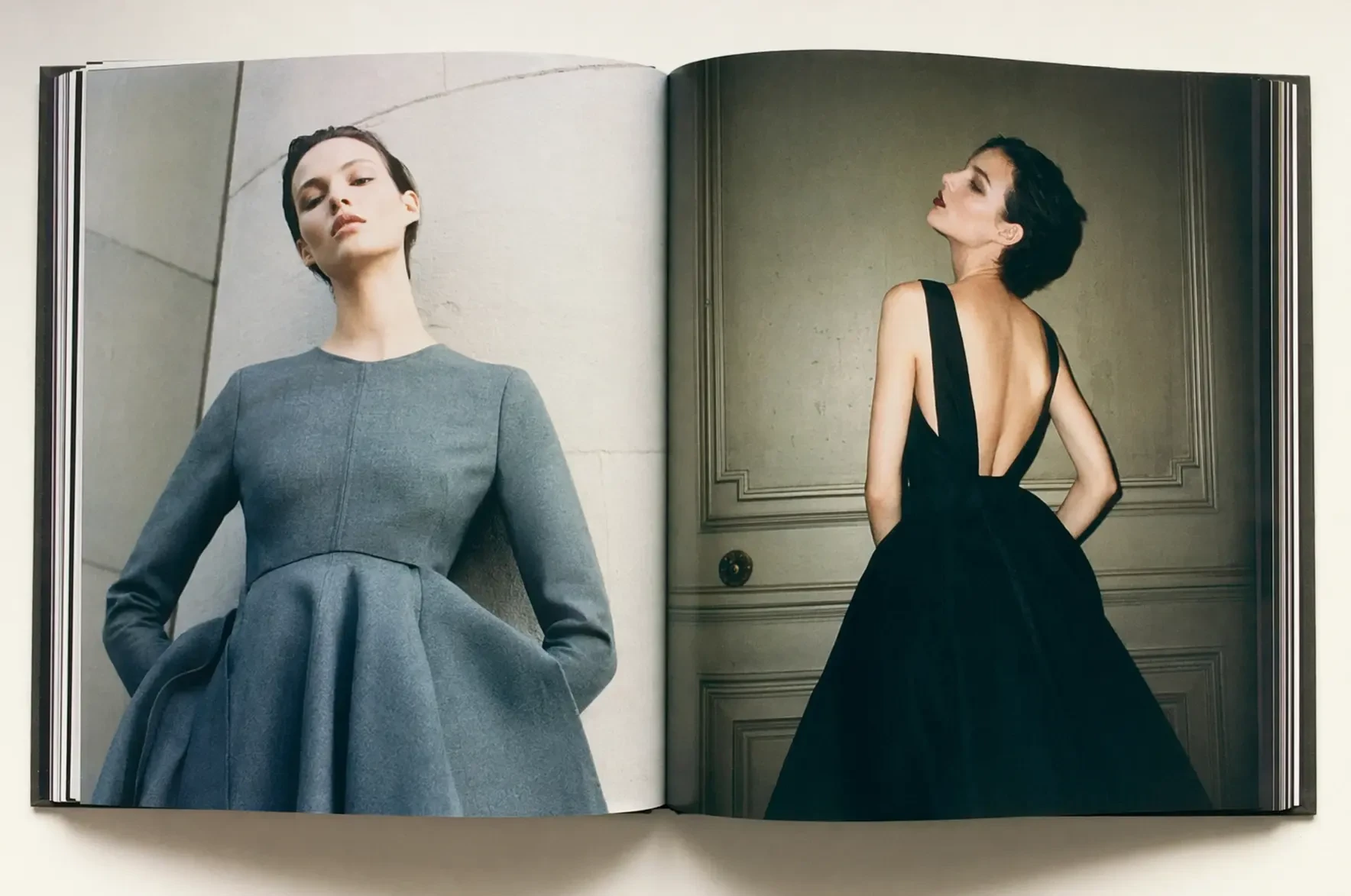
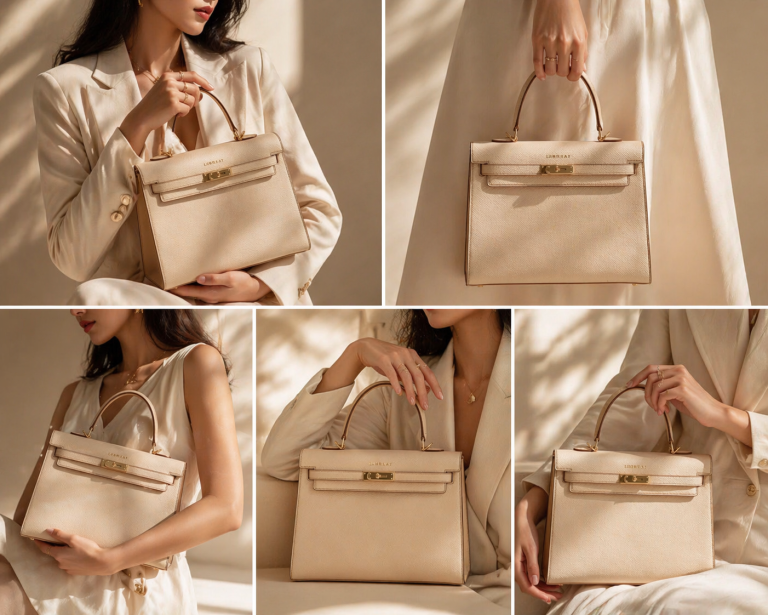
How to Generate a GIF With GPT Image 2.6 in ImaStudio
 Step 1Describe the Motion You Want
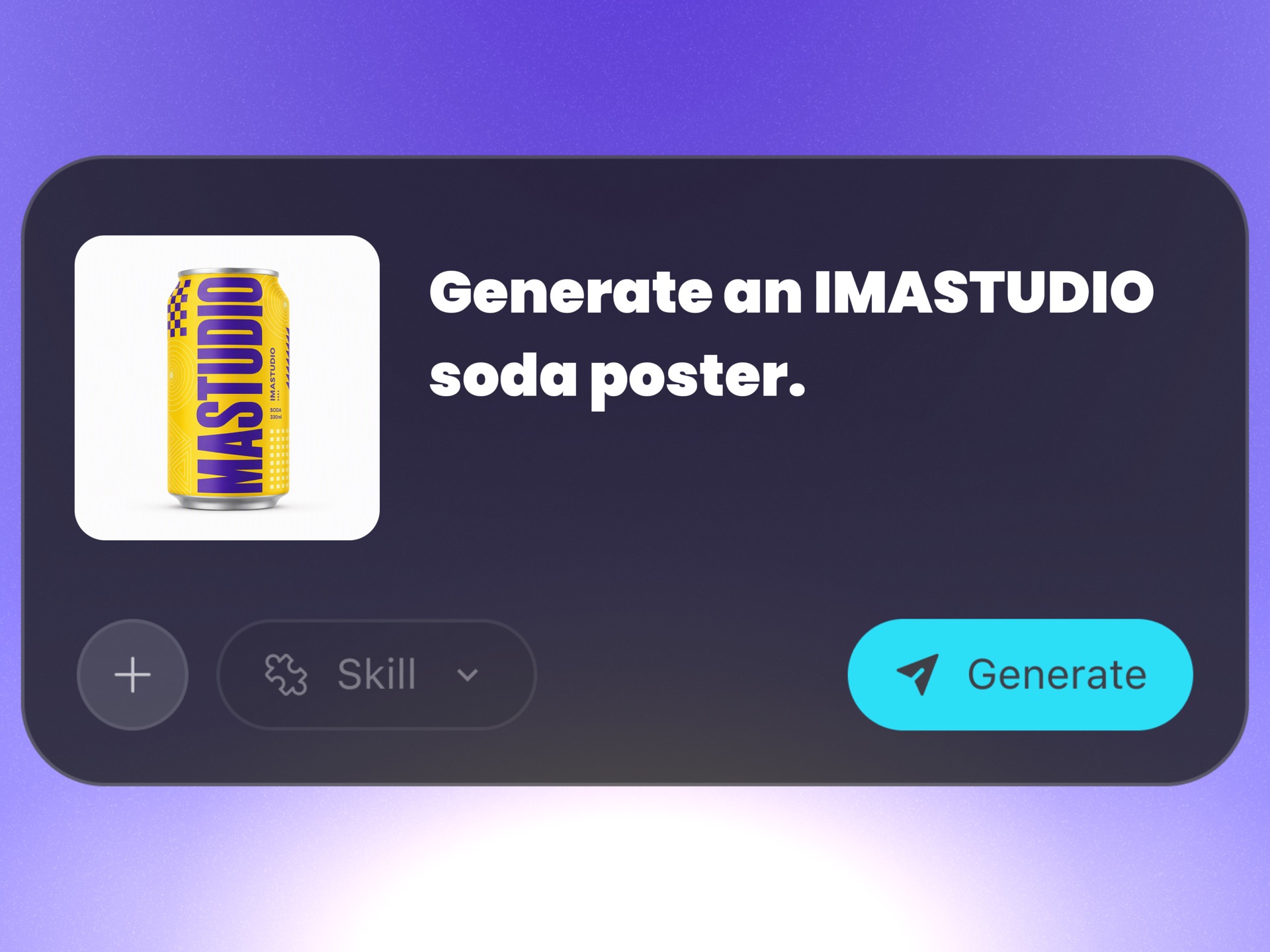
Open GPT Image 2.6 in ImaStudio and write a prompt for a looping sticker, animated banner, product highlight, or reaction GIF. Add a reference image if the animation should keep a specific character or product.
 Step 2Choose the format, then the settings
Choose GIF for animation and set its frame count, or SVG for a vector graphic. For a product shot, try rising steam without adding camera rotation or scene changes. Check the settings before generating.
 Step 3Generate, Download, and Share
Send the job into ImaStudio's creation workflow, preview the animation, download the GIF, and keep it in your history to reuse for stickers, ads, and social posts.
What you can create with GPT Image 2.6
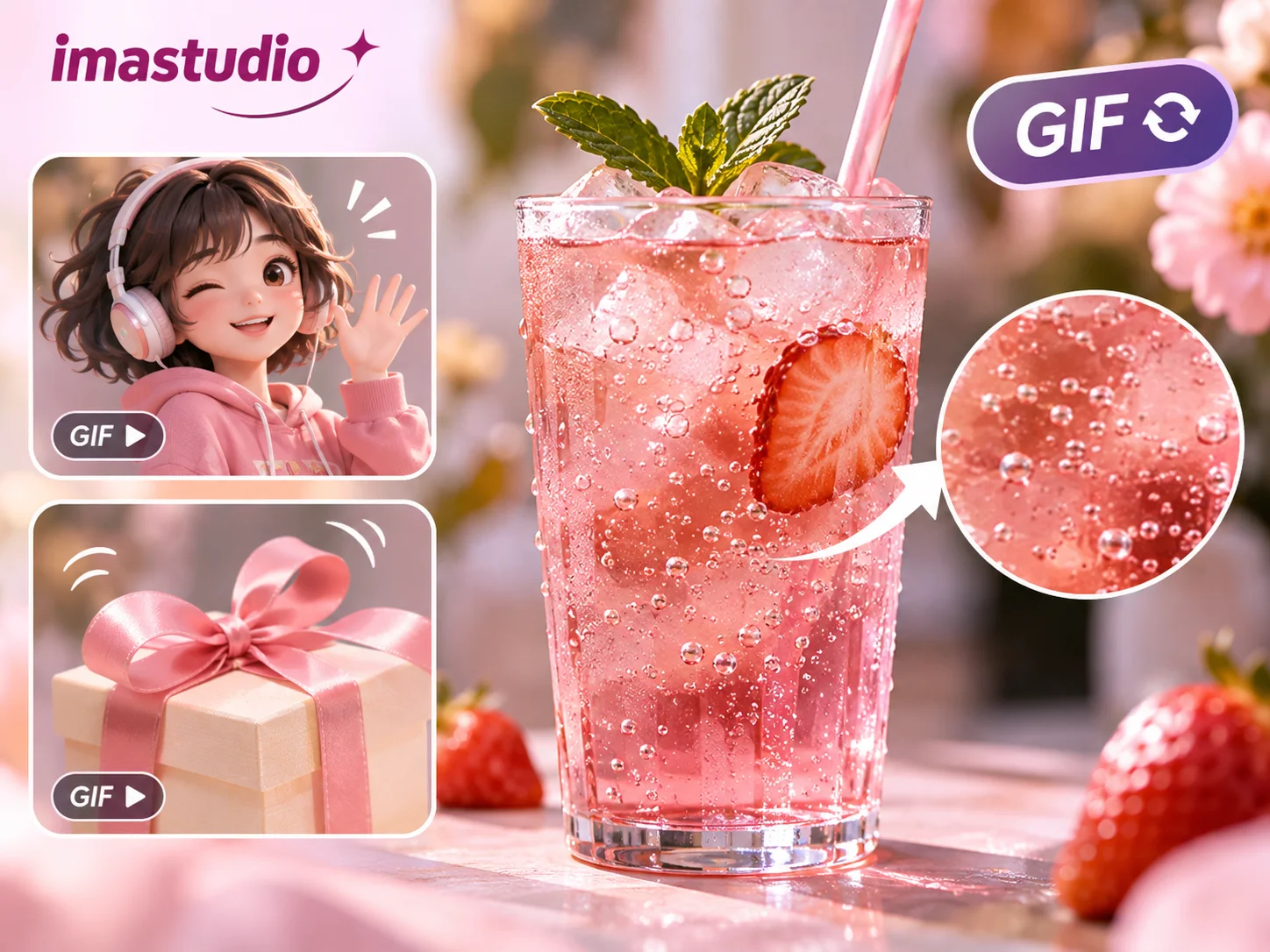
Turn products and characters into looping GIFs
Create visuals for product pages, campaign banners, community reactions and emails. Upload an image and specify the moving element: rising bubbles, a waving character or a gently swaying ribbon. Include the background and subject details you want to retain.
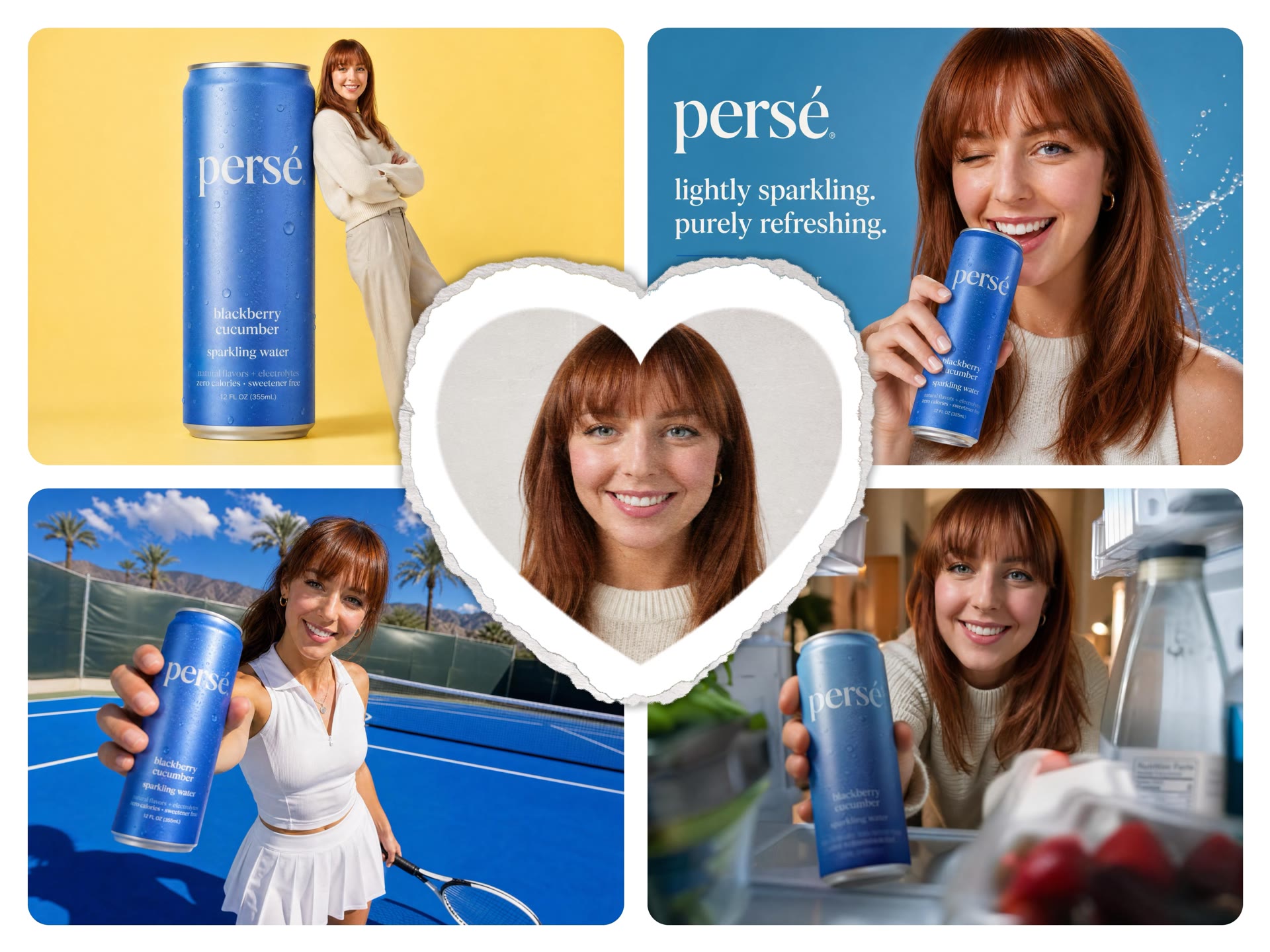
Explore a direction with Flare and Sunburst
Start with Flare for everyday posts, sketches and early ideas. Try Sunburst for product details, precise layouts and images you want to refine. Both accept text or image references, so compare the same material before choosing a result.
Create scalable icons and brand graphics
Make website icons, presentation graphics, simple marks and line illustrations. Choose SVG and describe shapes, colors and strokes, such as a set of coffee-tool icons with consistent line weight. Resize the download or continue in a vector editor.
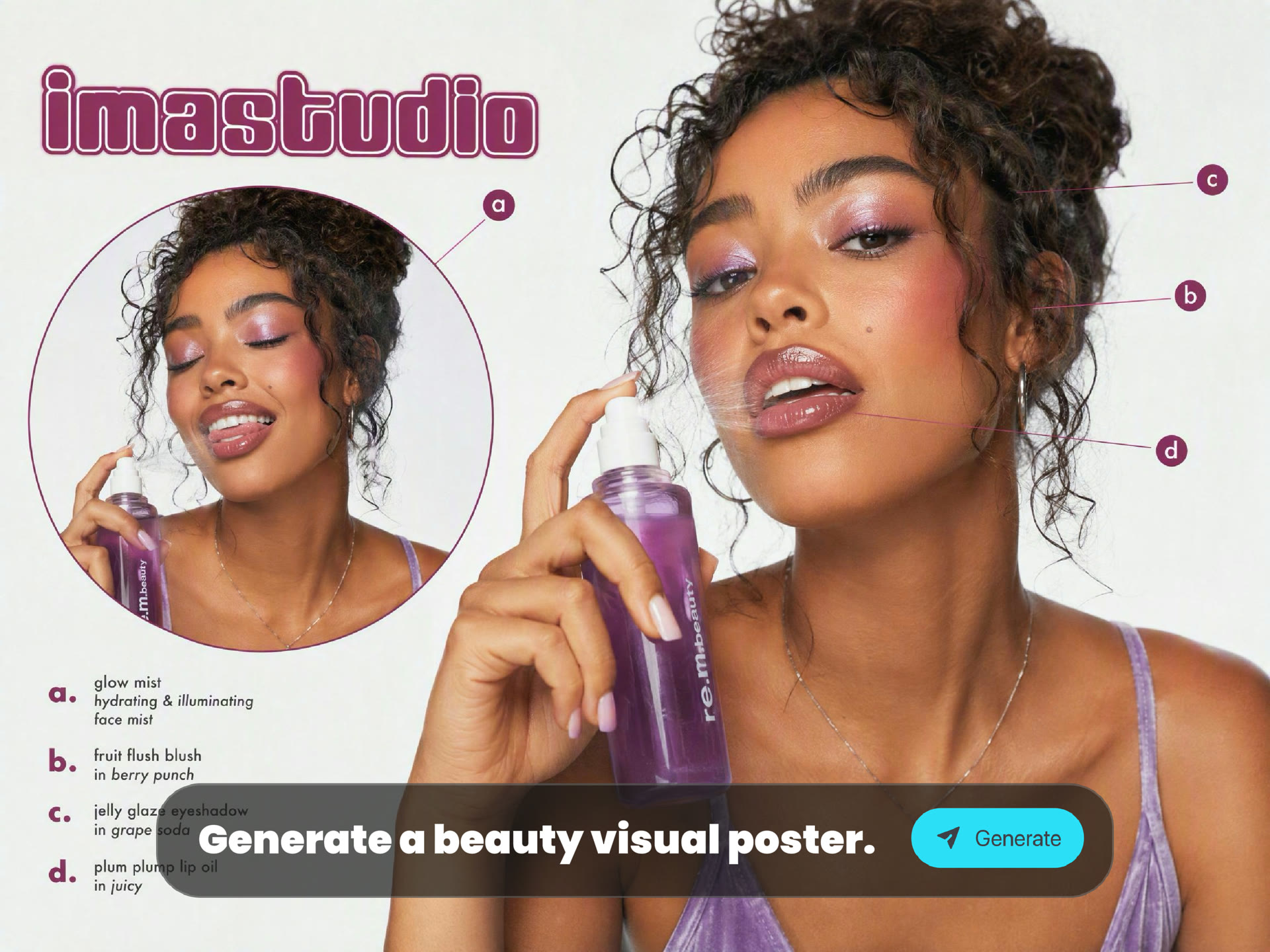
Build new content from an existing image
Use product or character references for launches, poster series and content updates. Prepare a clean product reference with the background remover, or use the AI image editor to adjust an existing image. Then bring your reference here and describe the new setting and the appearance to retain.
Best uses for GPT Image 2.6
Create product detail animations, community stickers, campaign banners and social visuals. Use SVG for static website icons, brand concepts and line art.
01
Community reactions and character stickers
Use GIF for community posts, character stickers and chat reactions. Start with one clear action. Try: “Keep the red scarf; the character blinks, then waves. Still background, seamless loop.”
02
Campaign banners and promotion animations
Animate one visual element and leave space for campaign copy. Try: “The ribbon on a gift box gently sways. Keep the box and background fixed; leave room on the right.”
03
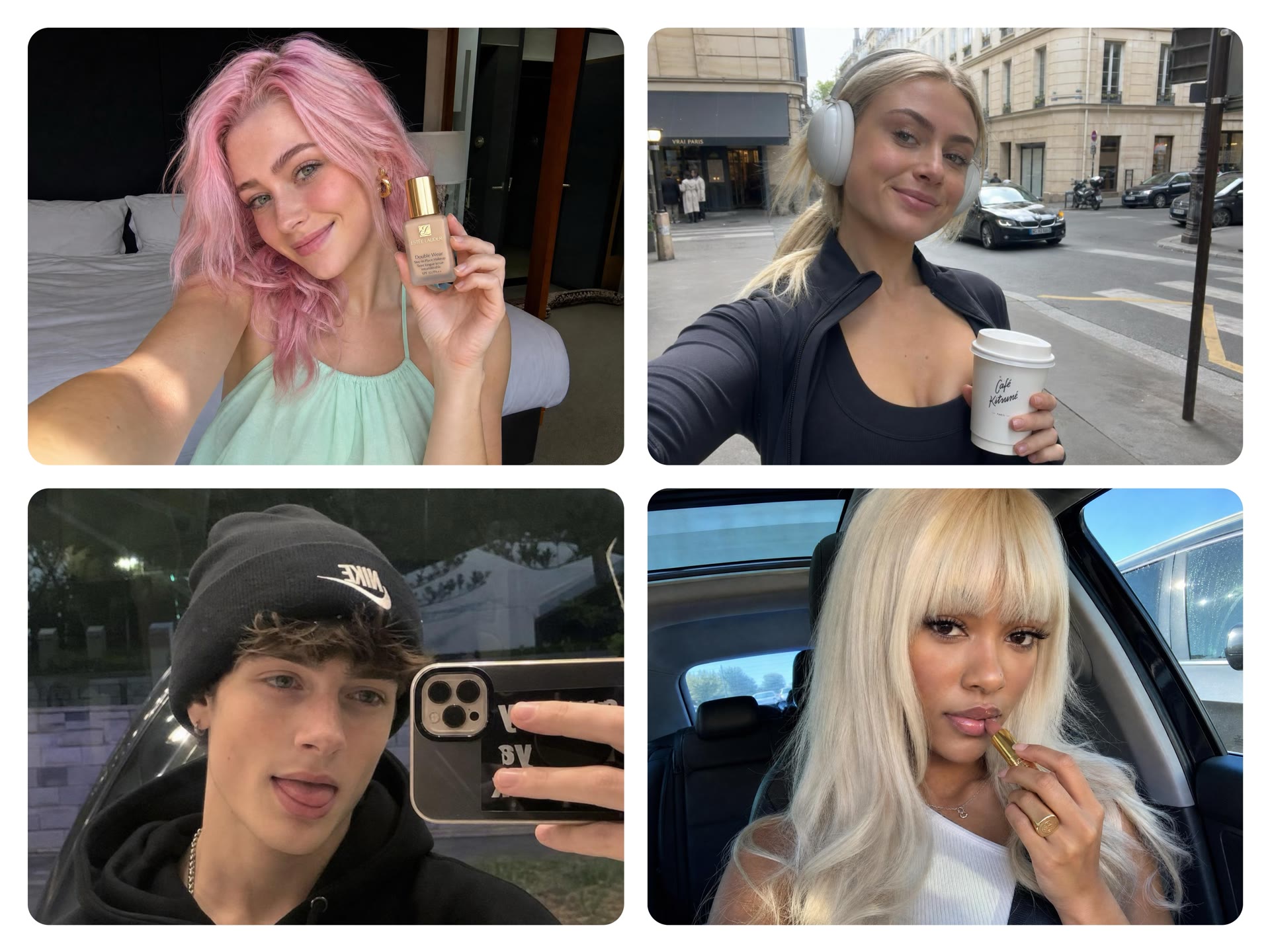
Product detail animations
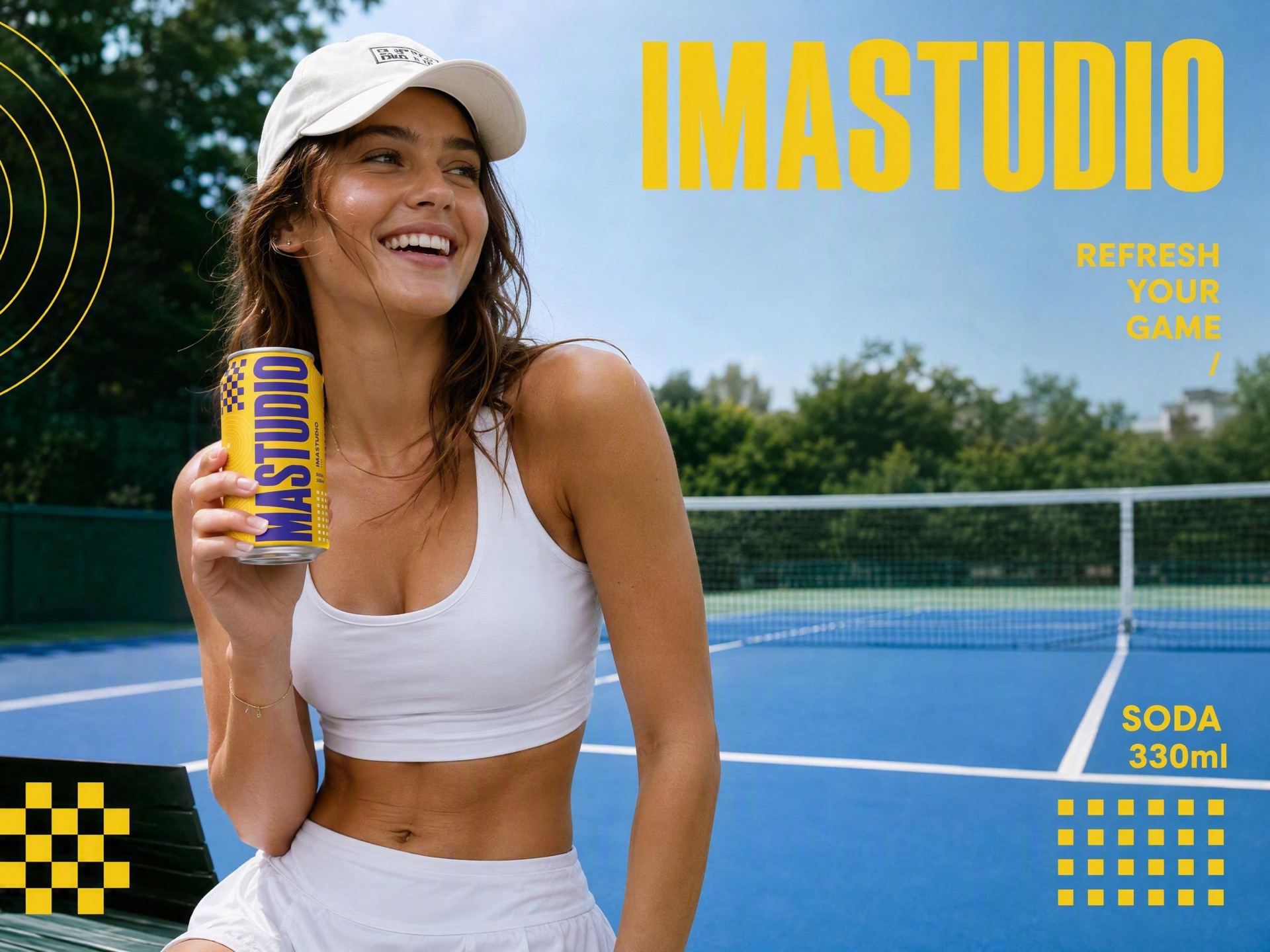
Upload a product photo and use GIF for steam, droplets or a shifting reflection. Try: “Keep the cup shape, logo and position. Only steam rises slowly; fixed camera.”
04
Social posts and email visuals
Build a short action around one subject for announcements or greetings. Try: “An envelope slowly opens; a card rises and stops. Simple background.”
05
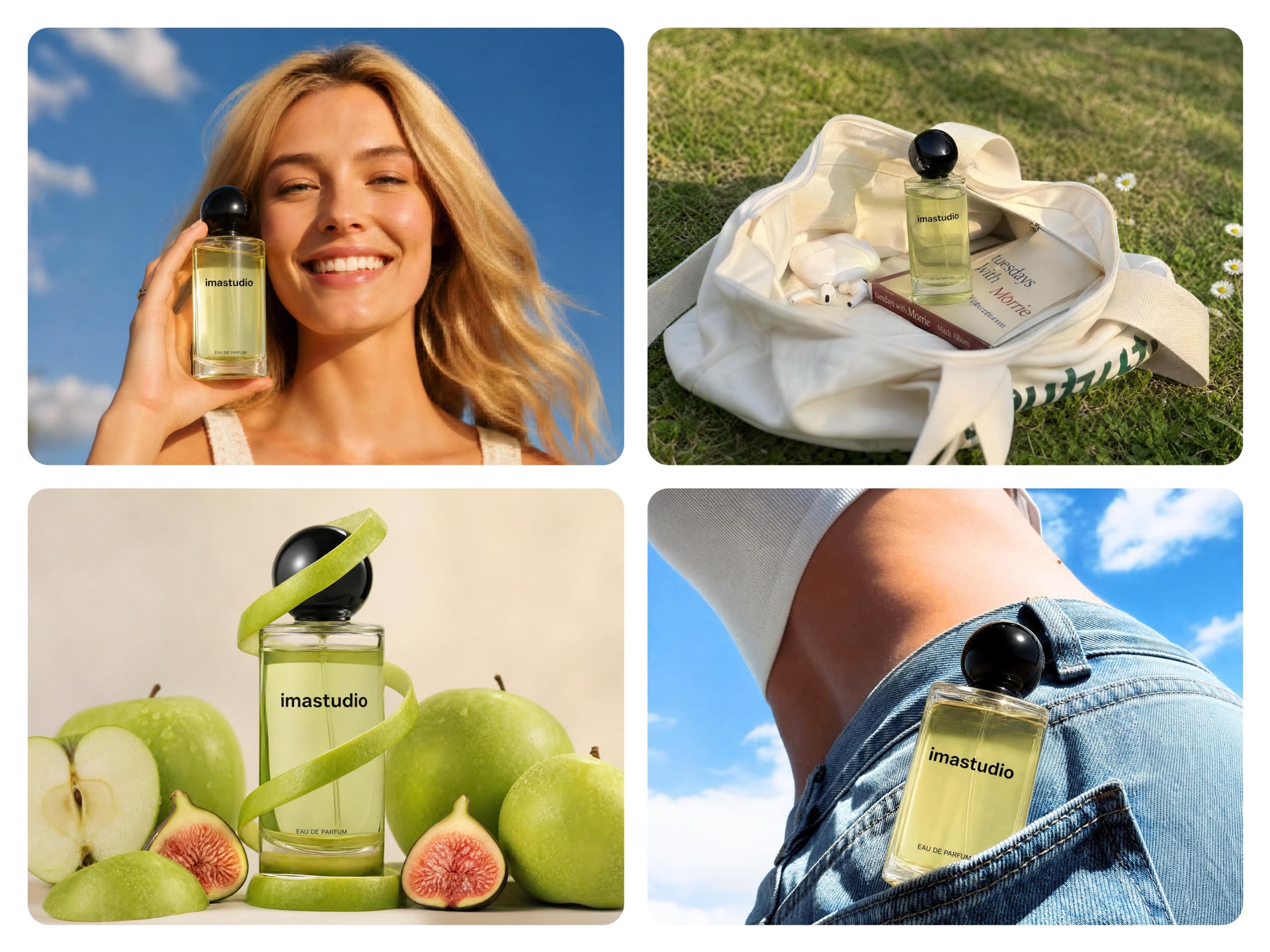
Website icons and brand concepts
Choose SVG for scalable static icons, simple marks and line art. Try: “An eco icon made of three leaves, monochrome lines, consistent stroke width, no gradients.”
06
Motion concepts for presentations
Compare actions before committing to a full production. Generate separate GIFs of the same gift box with “ribbon swaying” and “lid opening slowly,” then choose the stronger direction.
Why Use GPT Image 2.6 Through ImaStudio
Keep prompts, references and downloads in one ImaStudio workspace. Create a product GIF for a launch, then make matching icons and images. Find the results in history when you need them for the next campaign.
No API Setup
Use GPT Image 2.6 from the page without managing API keys, endpoints, model IDs, or developer configuration.
GIF Without a Video Workflow
Get a shareable animation in one step, instead of generating a video, trimming it, and converting it to GIF in another tool.
Output Format Up Front
GIF is pre-selected on this page, and you can switch to SVG or other formats before you generate.
Connected to ImaStudio History
Outputs can be saved, downloaded, compared, and reused from the creation workflow instead of disappearing after a single generation.
GIFAnimated output from a prompt
SVGScalable vector output
SaveKeep results in history
GPT Image 2.6 FAQs
Explore more AI tools and creative examples
Create With Ima Studio
Everything in one workspace - images, video, and agents.