


Seedream 5.5 — AI Image Generator

Turn an idea or reference into a 4K image, refine one area at a time, keep multilingual text readable, and break the final image into up to 100 editable layers — all in ImaStudio.

Four practical ways to use Seedream 5.5

Seedream 5.5 brings local edits, multi-image references, multilingual text and layer separation into one workflow, from a new product launch to a campaign ready for market.

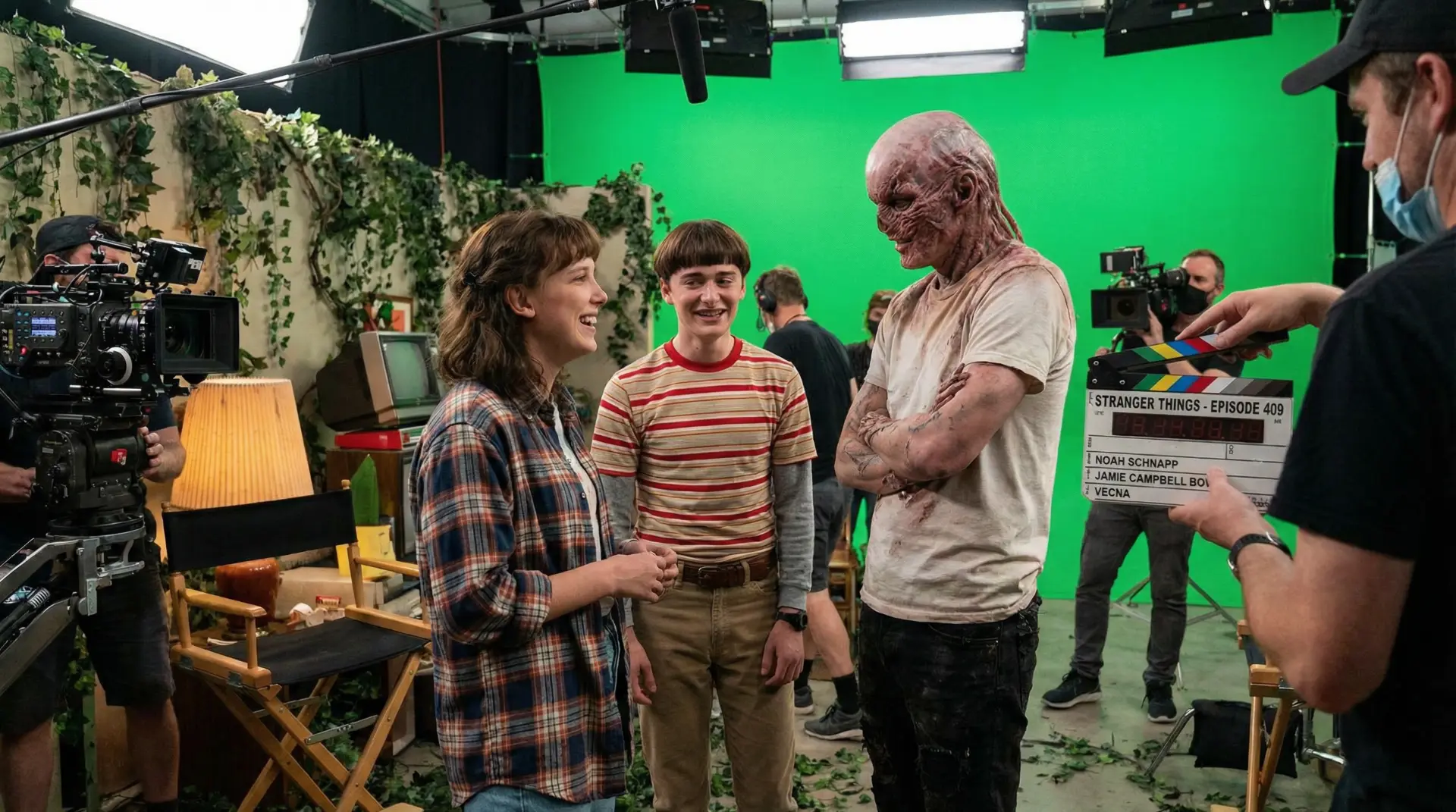
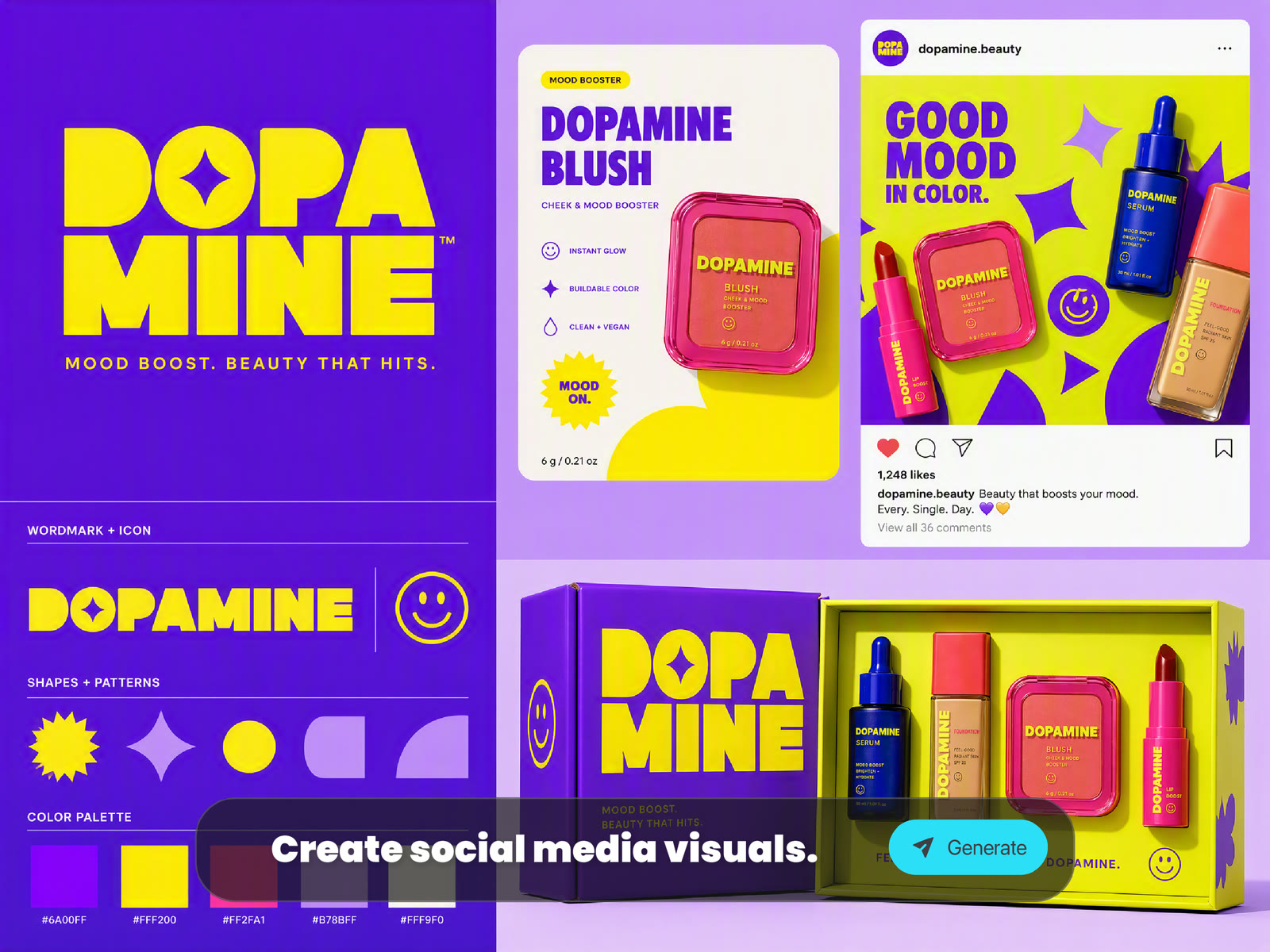
Ecommerce teams: test product ads fasterAI GENERATED
Ecommerce teams: test product ads faster

Upload an approved product image to ImaStudio and use Seedream 5.5 in [Canvas](/canvas-editor) to adjust the package color, background, selling point or promotion one round at a time. Keep the product and composition steady while you compare several ad directions, then turn the chosen product link into a short video with [URL to Video](/url-to-video).

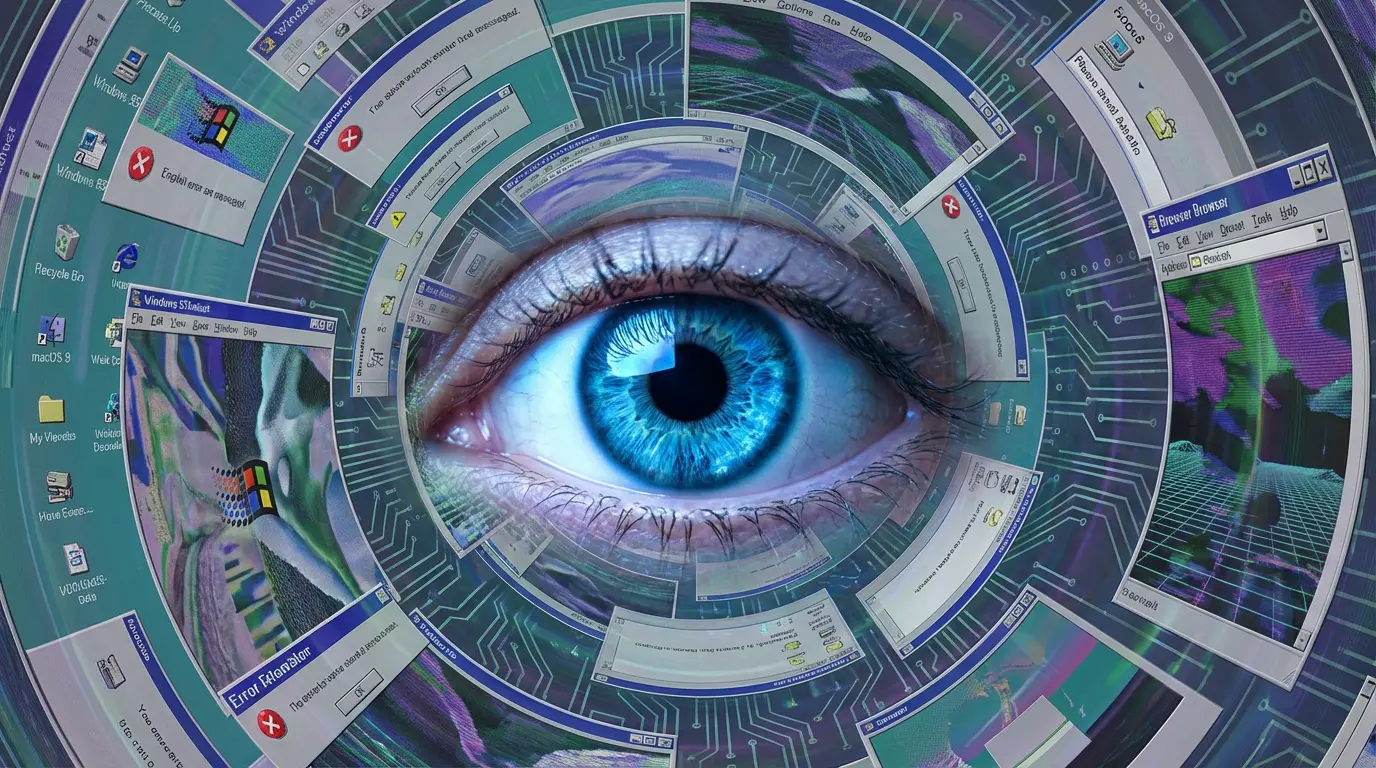
Global teams: prepare local market assetsAI GENERATED
Global teams: prepare local market assets

Start with one campaign poster and replace the language and copy while keeping the layout, price, date and call to action in place. Ask ImaStudio Agent to review the local wording, then use [Edit Text in Image](/edit-text-in-image) when a price, date or language in the final image needs a precise adjustment. One approved design can grow into versions for Japan, Thailand, Russia and more.

Brand teams: adapt one key visual to every channelAI GENERATED
Brand teams: adapt one key visual to every channel

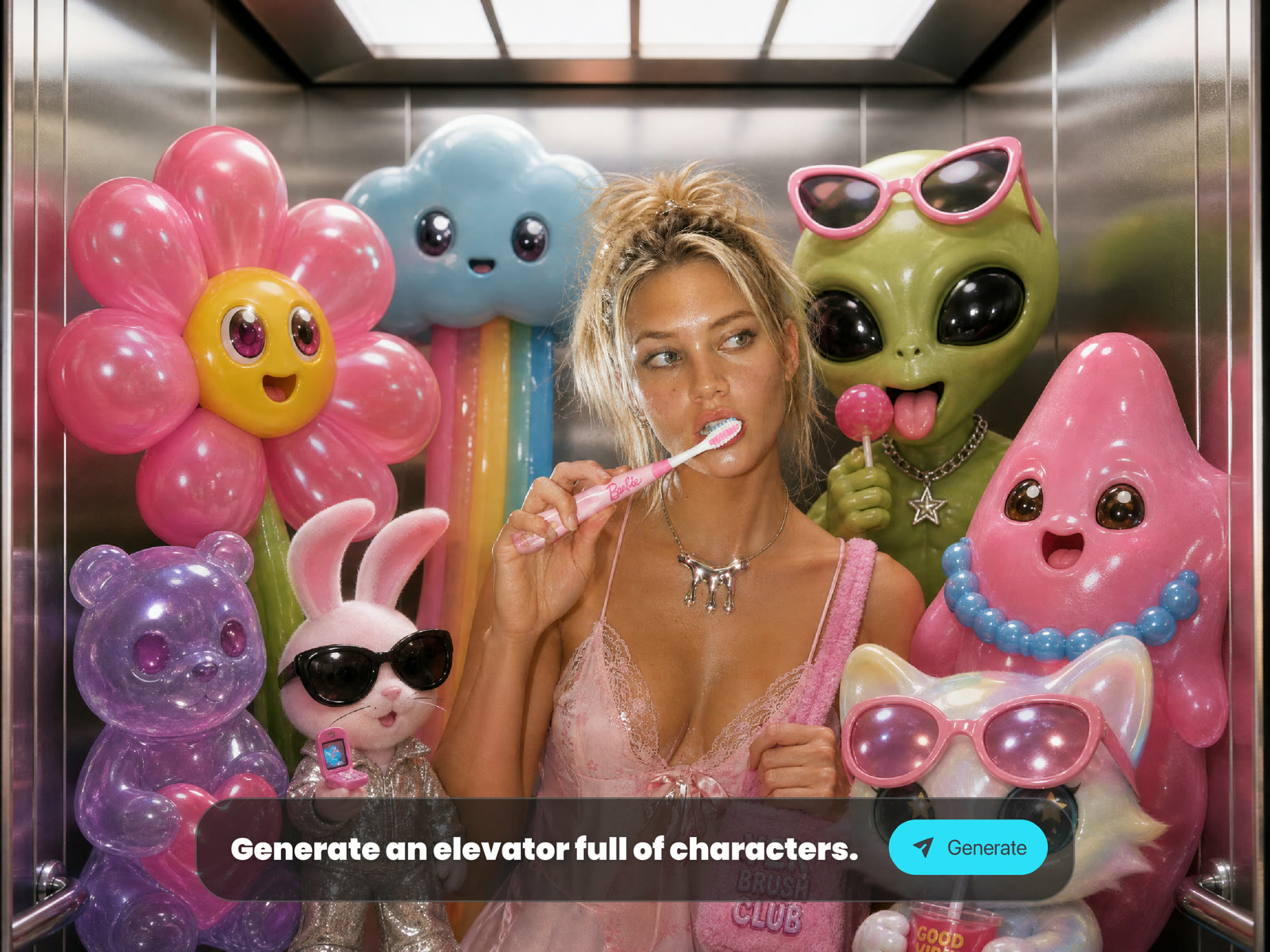
Bring a key visual, product image and style references into ImaStudio [Canvas](/canvas-editor). Use Seedream 5.5 to extend the idea into posters, vertical social graphics, package labels, postcards and stickers. Separate the layers or use [Edit Text in Image](/edit-text-in-image) when one product, background or line of copy needs a change.

Photo and creative teams: agree on the visual before the shootAI GENERATED
Photo and creative teams: agree on the visual before the shoot

Photographers, stylists and creative teams can upload references for the people, clothes, products and setting in ImaStudio's [AI Product Photography](/ai-product-photography), then use Seedream 5.5 to explore compositions, displays and lighting directions, and organize and compare them. Settling on one main visual before the shoot cuts communication costs and makes the final style easier to keep consistent.

How to use Seedream 5.5

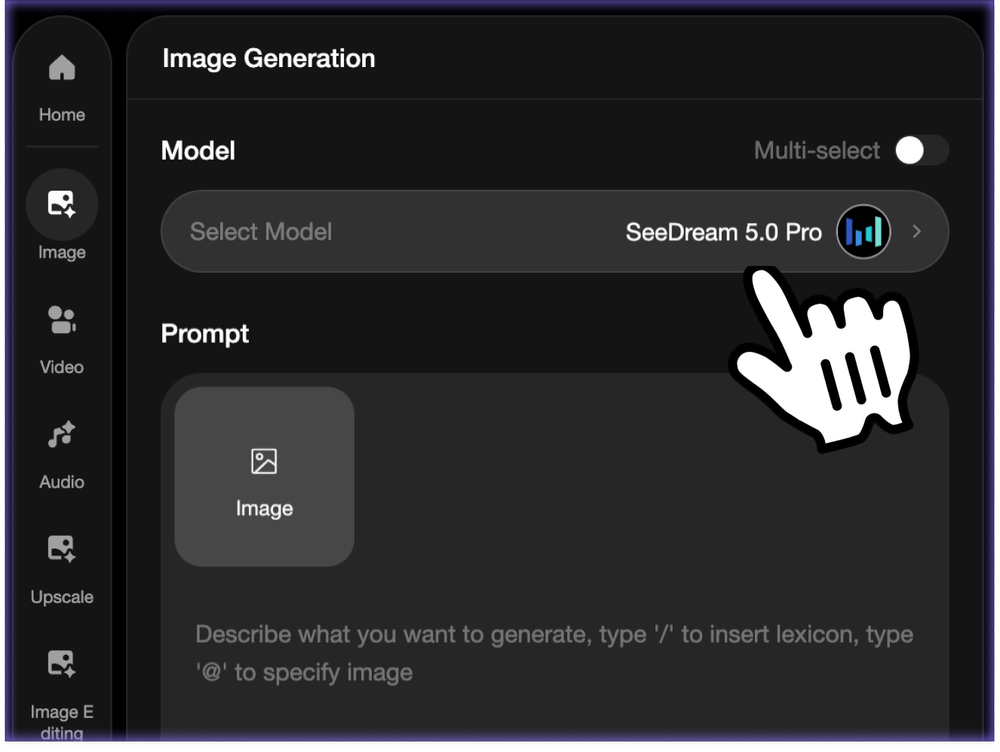
  1. Choose the model
    Choose the model

    Open the image generator above and check that Seedream 5.5 is selected.

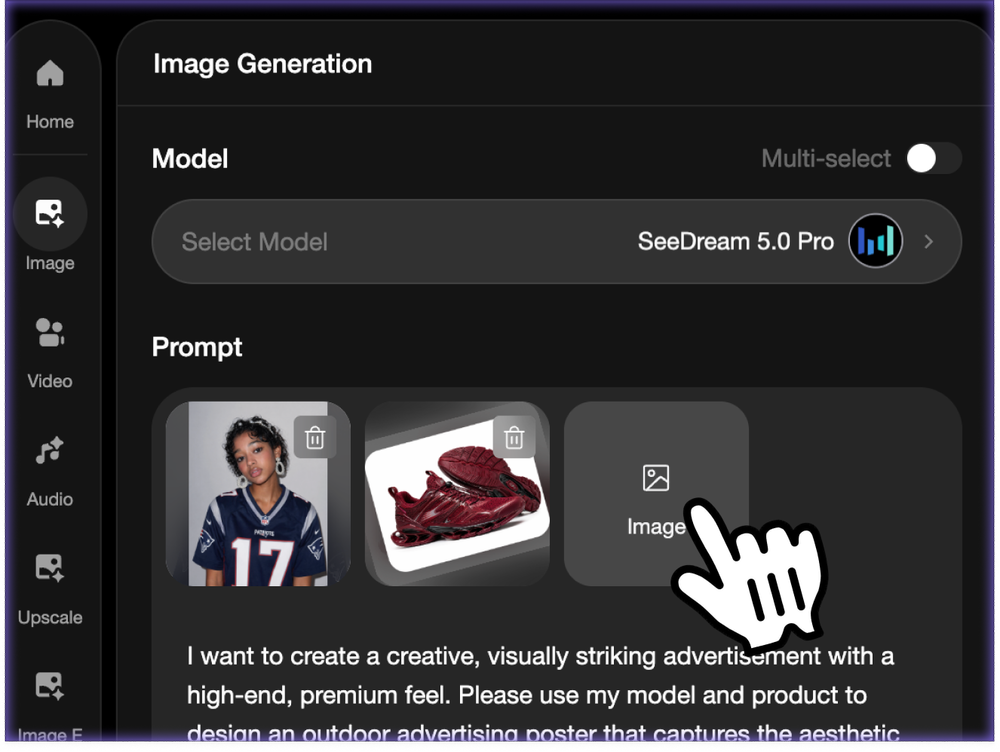
  2. Write a prompt and add references
    Write a prompt and add references

    Describe the image you want. Put any words that must appear in the image in quotation marks, then add reference images for a specific person, product or style.

  3. Set the output and create
    Set the output and create

    Choose the aspect ratio and output settings, then select Generate. Download the result or keep refining it with another focused edit.

Seedream 5.5: from first idea to production-ready asset

Precise local edits: change one area at a time

Precise local edits: change one area at a time

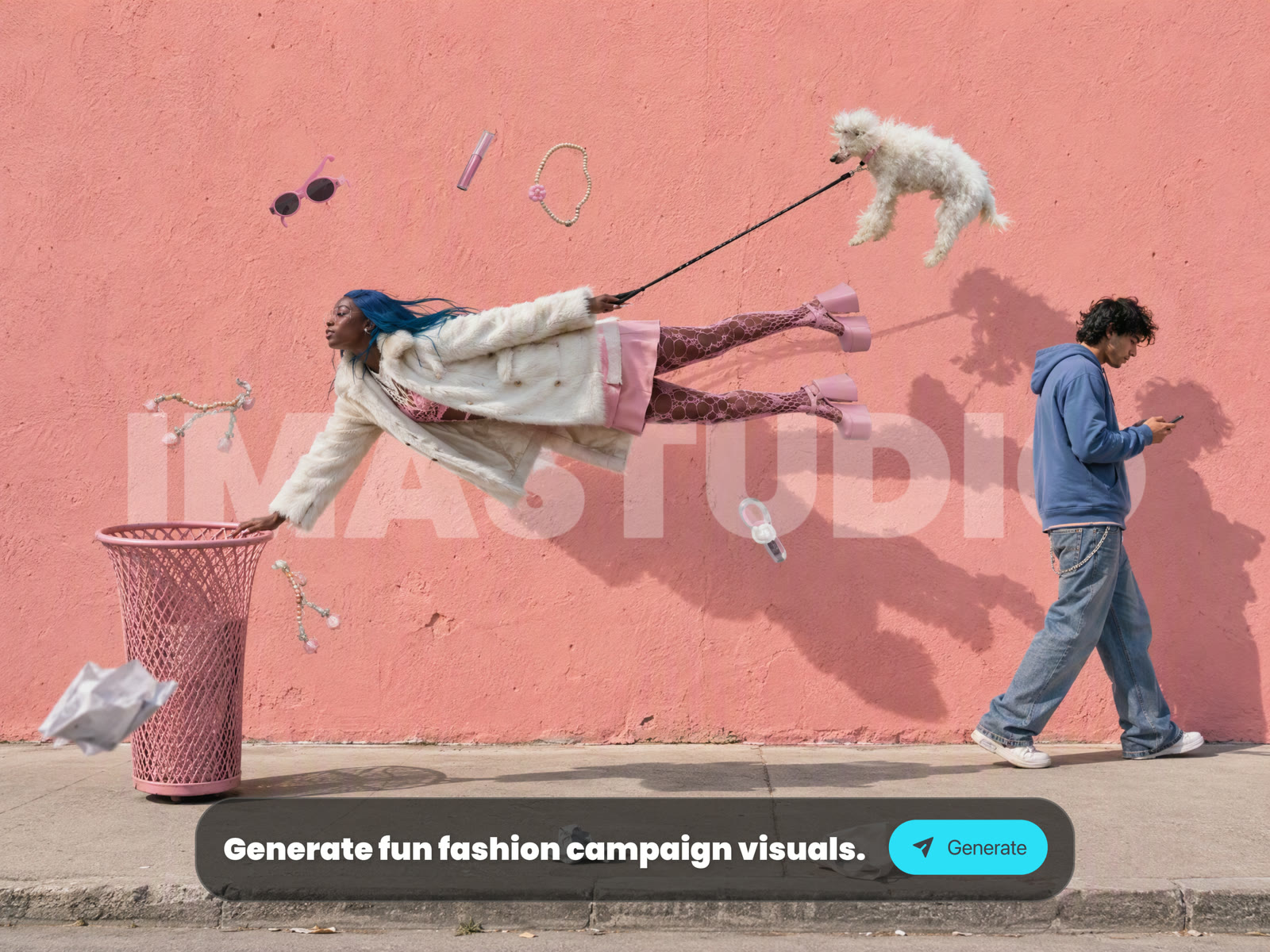
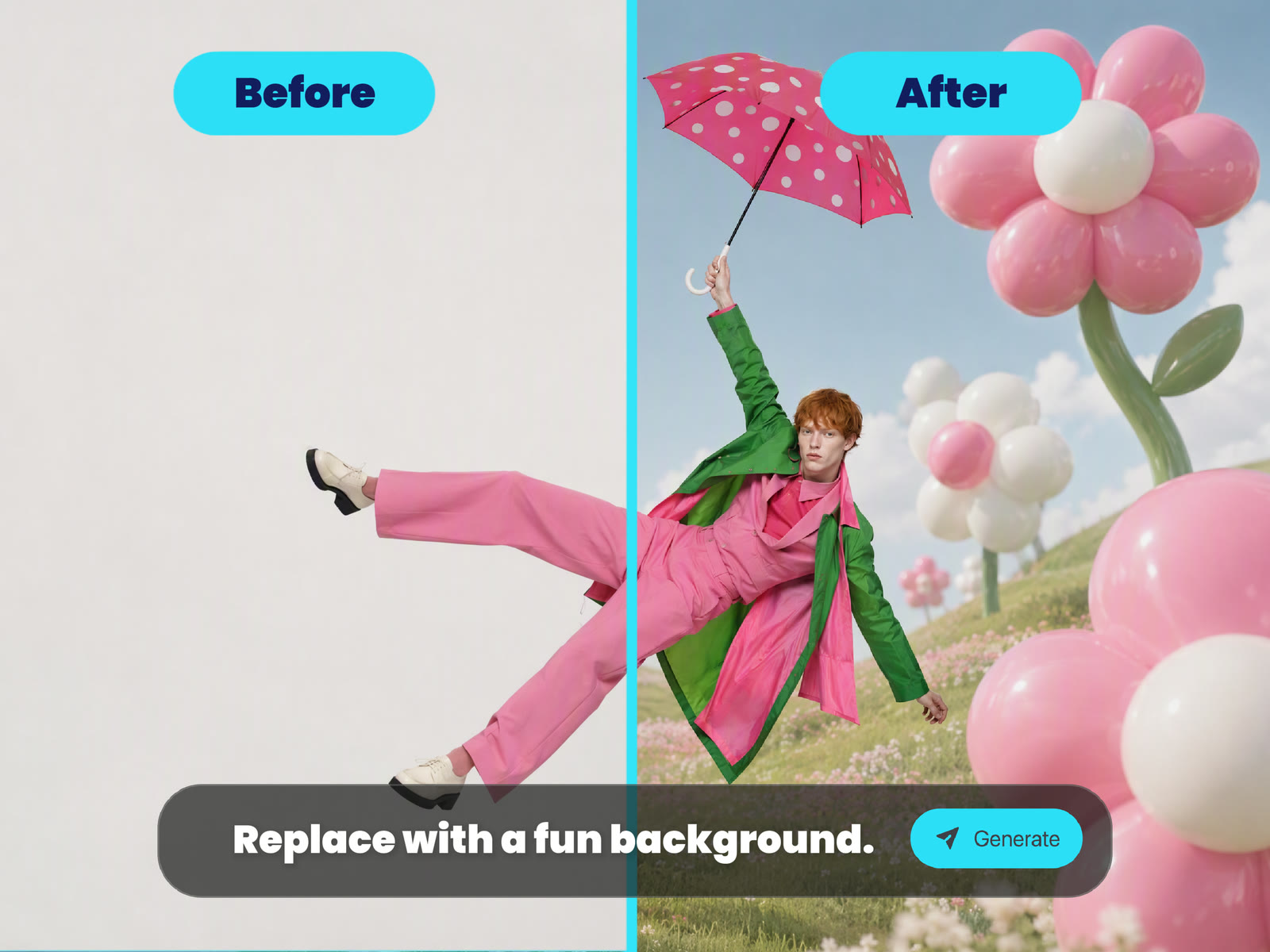
Keep the subject and composition you already approved while changing only the area you name. Ecommerce, brand and advertising teams can test packaging, color, background and promotional details on the same product image without rebuilding it from scratch.

Multi-image references: bring people, products and scenes together

Multi-image references: bring people, products and scenes together

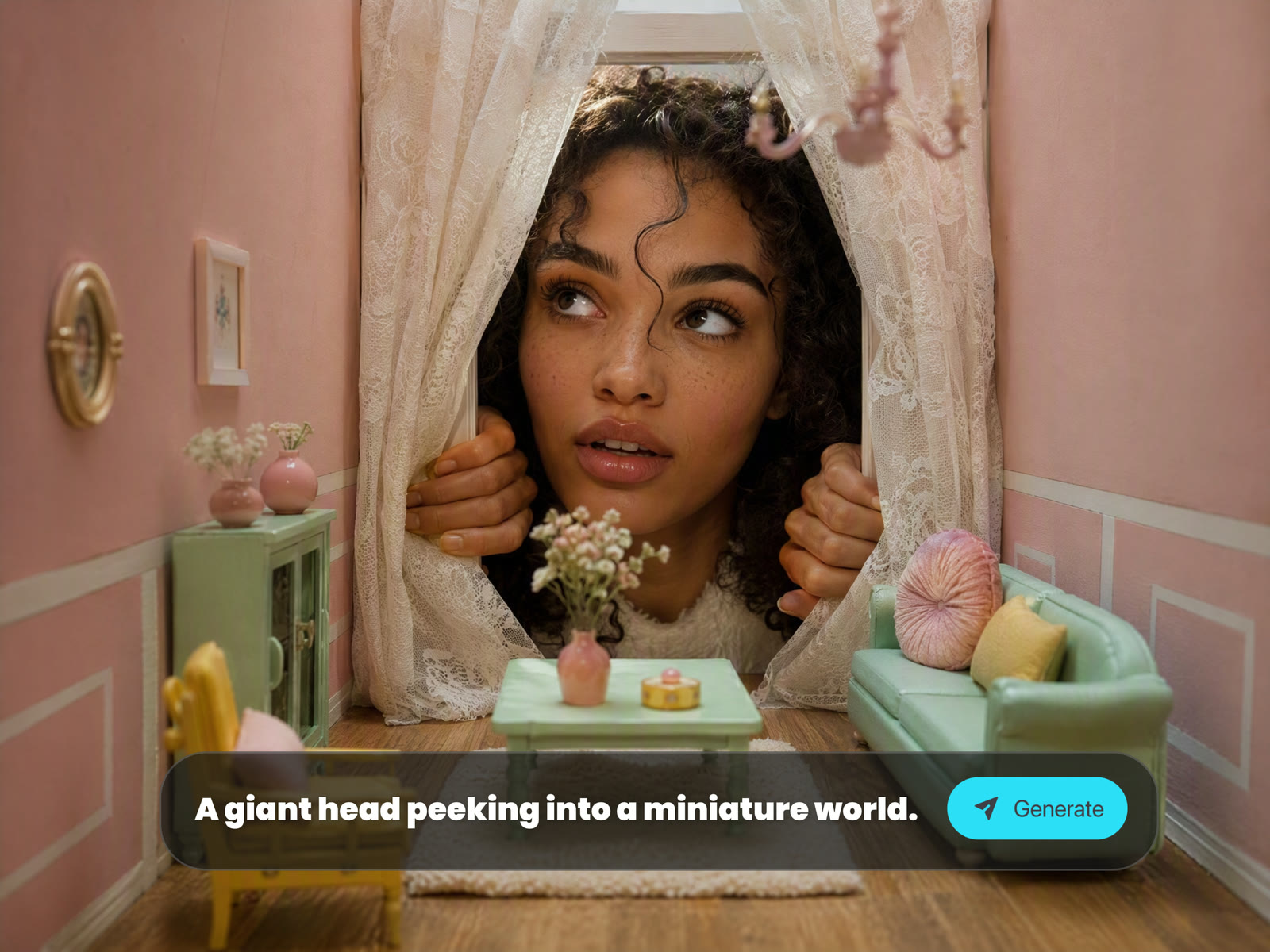
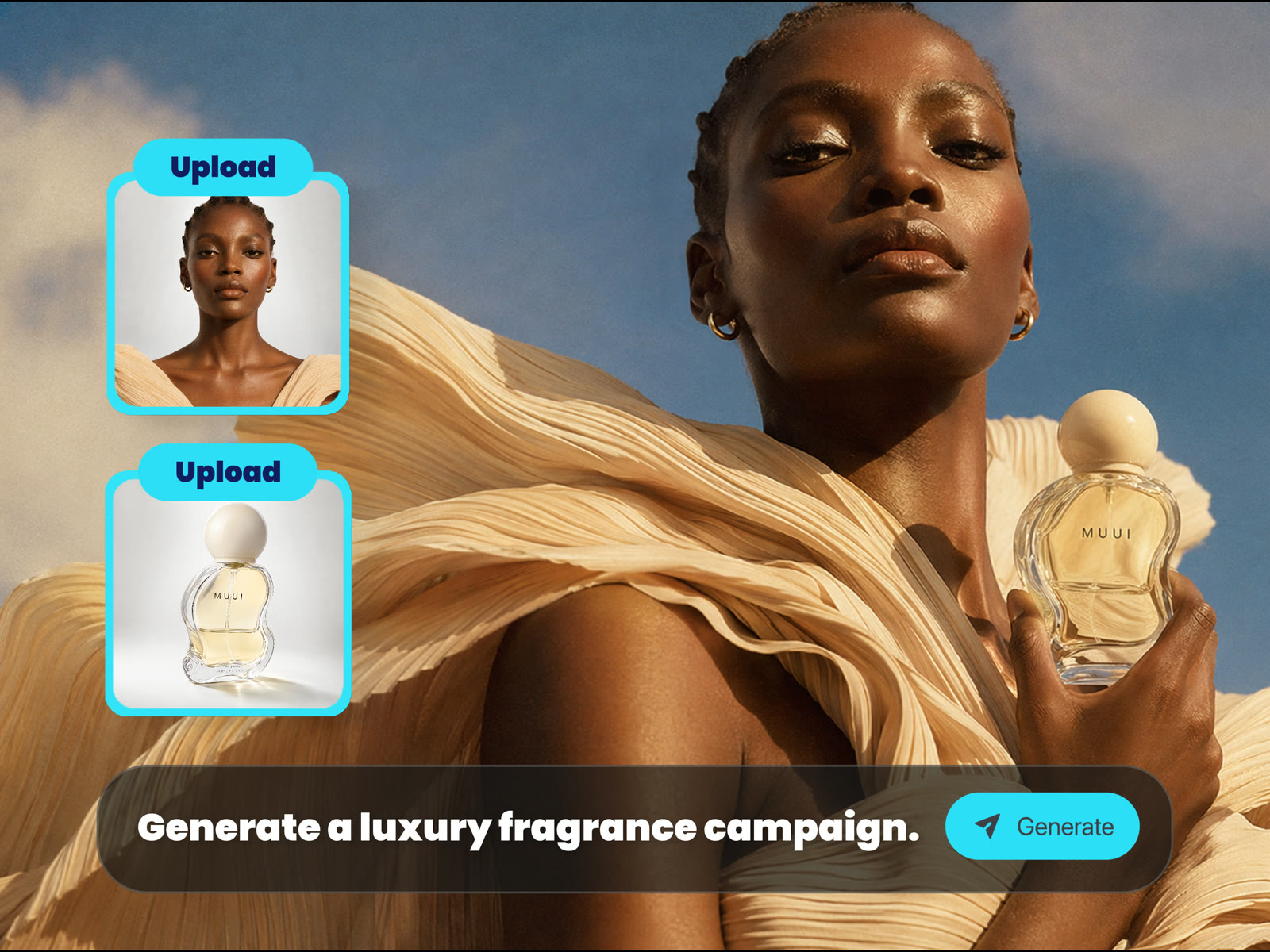
Use several reference images in one generation to combine a person, outfit, product and setting naturally. Photographers, ecommerce teams and creators can compare different displays and styling for one launch visual.

Multilingual text and layouts: keep the message clear

Multilingual text and layouts: keep the message clear

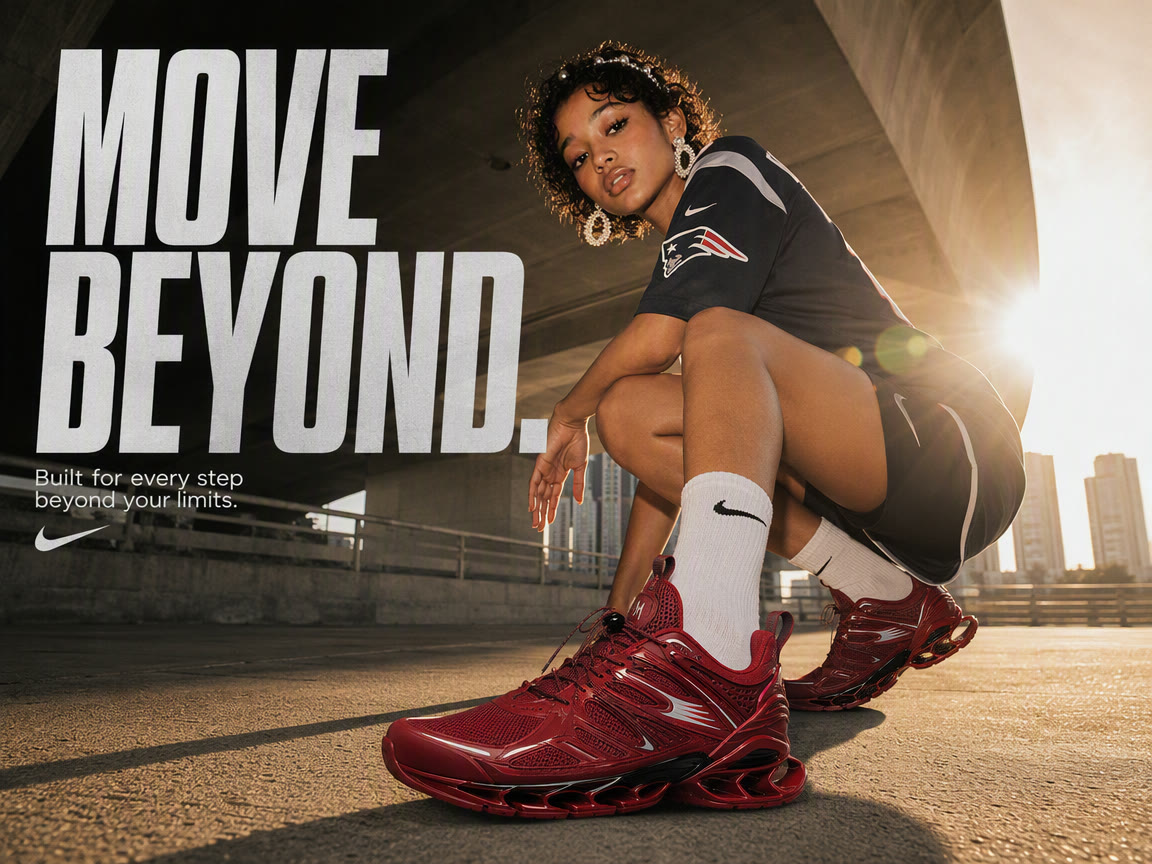
Place multilingual copy clearly in posters, packaging and ads. Keep the same layout for Japanese, Thai, Russian and other market versions while the price, date, selling point and call to action stay where they belong.

Transparent backgrounds: get assets ready to layer

Transparent backgrounds: get assets ready to layer

Create transparent or semi-transparent backgrounds while keeping the subject edges and details clean. Make product cutouts, stickers, logos, package elements, icons and livestream overlays that can go straight onto a page, poster or video.

Layer separation: keep editing after the image is made

Layer separation: keep editing after the image is made

Split one image into up to 100 layers, including text layers that can be read and changed. Designers and content teams can replace a price, language, product or background for different channels and regions without redrawing the whole image.

Four practical ways to use Seedream 5.5

Seedream 5.5 brings local edits, multi-image references, multilingual text and layer separation into one workflow, from a new product launch to a campaign ready for market.

01

Ecommerce teams: test product ads faster

Upload an approved product image to ImaStudio and use Seedream 5.5 in Canvas to adjust the package color, background, selling point or promotion one round at a time. Keep the product and composition steady while you compare several ad directions, then turn the chosen product link into a short video with URL to Video.
02

Global teams: prepare local market assets

Start with one campaign poster and replace the language and copy while keeping the layout, price, date and call to action in place. Ask ImaStudio Agent to review the local wording, then use Edit Text in Image when a price, date or language in the final image needs a precise adjustment. One approved design can grow into versions for Japan, Thailand, Russia and more.

03

Brand teams: adapt one key visual to every channel

Bring a key visual, product image and style references into ImaStudio Canvas. Use Seedream 5.5 to extend the idea into posters, vertical social graphics, package labels, postcards and stickers. Separate the layers or use Edit Text in Image when one product, background or line of copy needs a change.

04

Photo and creative teams: agree on the visual before the shoot

Photographers, stylists and creative teams can upload references for the people, clothes, products and setting in ImaStudio's AI Product Photography, then use Seedream 5.5 to explore compositions, displays and lighting directions, and organize and compare them. Settling on one main visual before the shoot cuts communication costs and makes the final style easier to keep consistent.

Tips for cleaner results

A few simple habits can help Seedream 5.5 reach a clean result in the first or second attempt.

Ask for one change per edit

Make one focused change at a time. Clear, smaller edits are easier for the model to follow and easier for you to compare.

Put exact on-image text in quotation marks

Wrap words that must appear in the image in quotation marks, then check prices, dates and phone numbers before publishing.

Say transparent background when you need a cutout

State that you need a transparent background, then inspect the edges against both light and dark backgrounds.

Use 4K for the final output

Test the idea at a smaller size first. Once the composition is right, create the final asset in 4K.

Seedream 5.5 FAQs

Explore more AI tools and creative examples

Start creating with Seedream 5.5

Use Seedream 5.5 in ImaStudio to make 4K images, refine references, place multilingual text and separate layers online.