Free AI Image Combiner Online

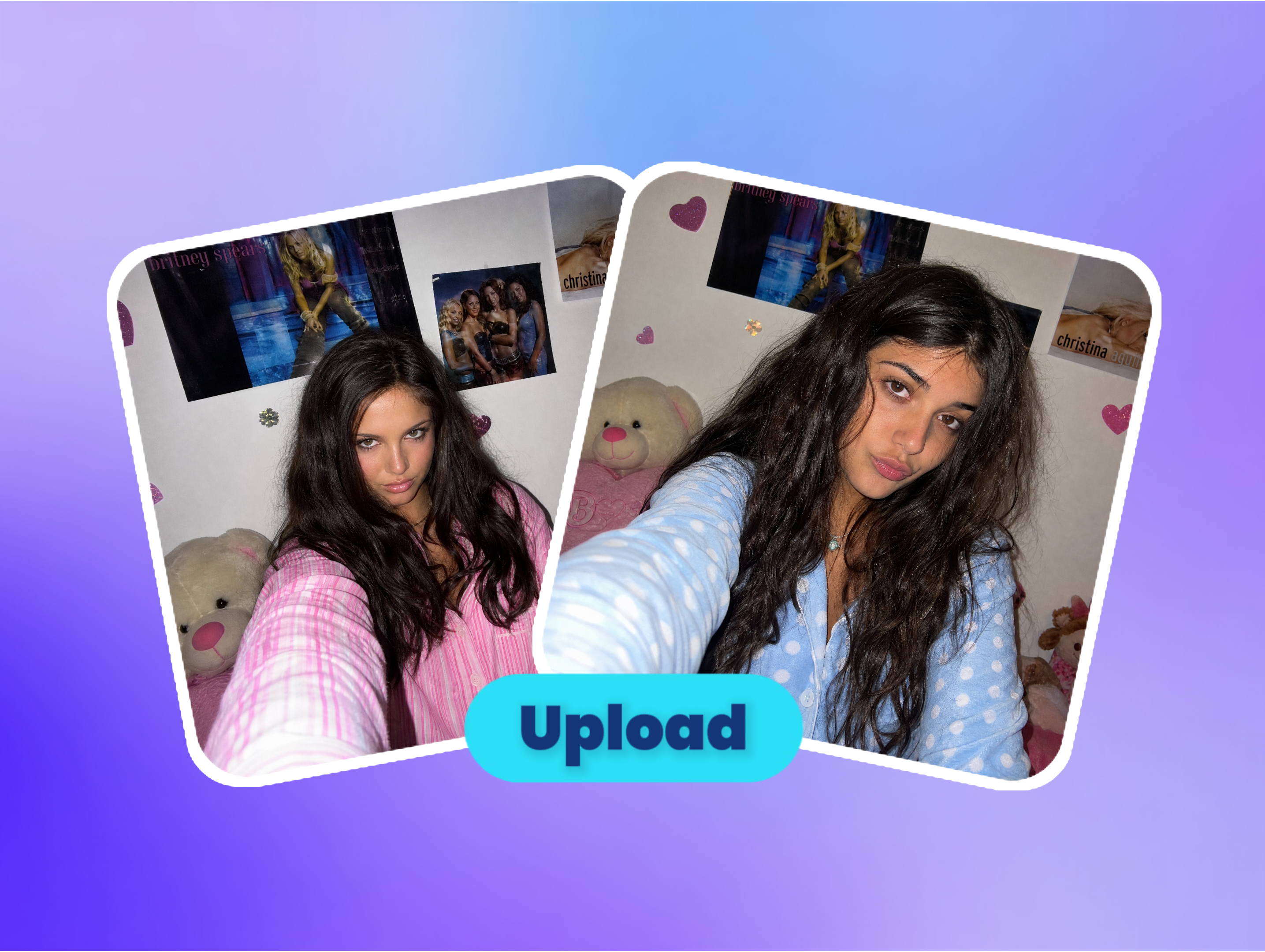
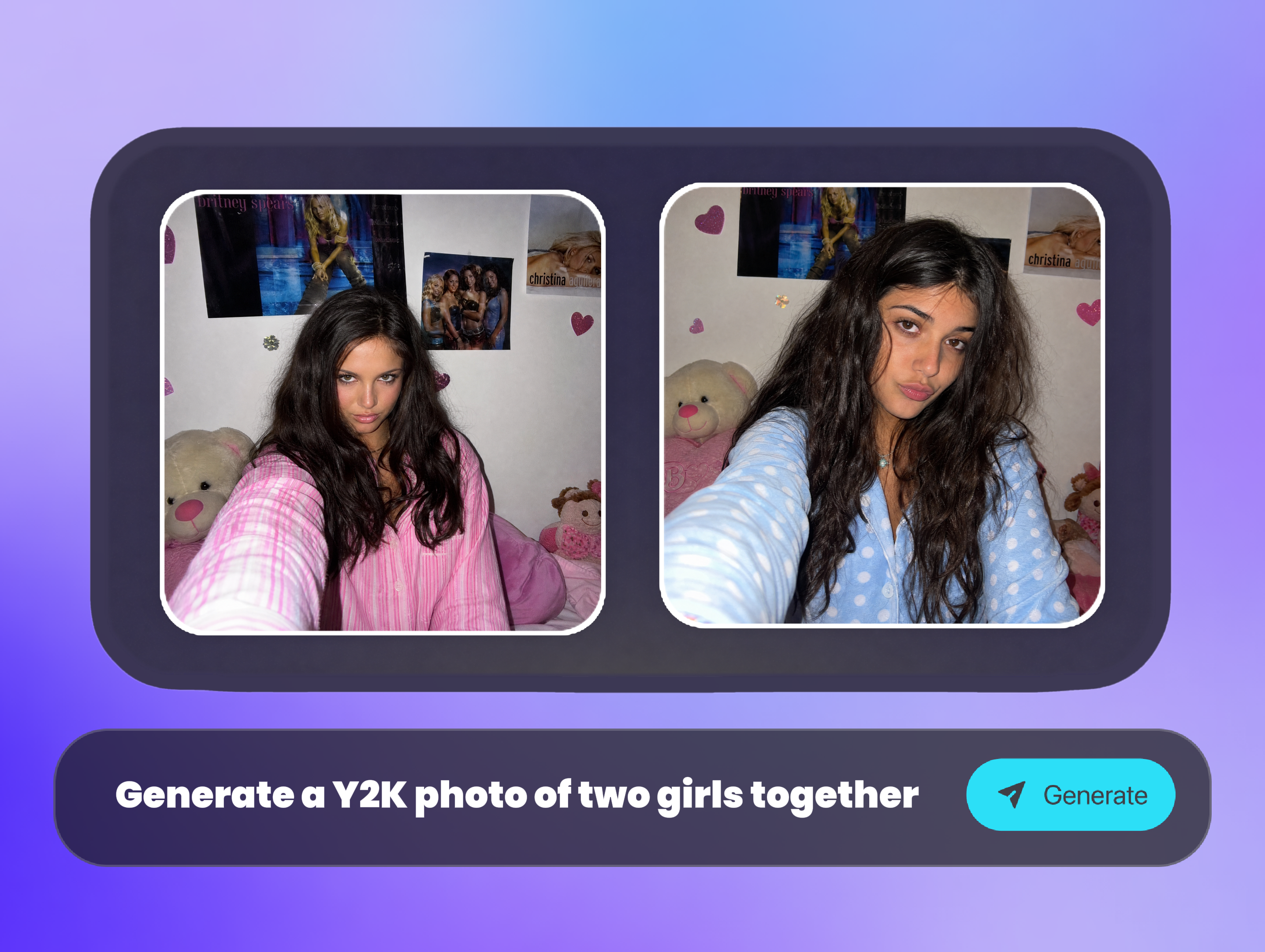
For ecommerce operators, designers, marketers, and creators, turn two or three reference images into one visual for product pages, marketplace listings, Instagram posts, or campaign drafts. Upload product, subject, background, or layout references, describe how they should combine, choose an aspect ratio, and review the result in ImaStudio. The page uses GPT Image 2 and accepts up to three images. It is best for fast concepts, not pixel-level masking or locked layouts.

Where an AI Image Combiner Fits

Use this workflow when a job starts with two or three visual references and the goal is a new image, not a pixel-perfect layer file. It is most useful for product-scene concepts, subject-and-background composites, visual comparisons, and early creative directions. Choose another tool when exact typography, locked dimensions, or manual masks are the main requirement.

AI GENERATED
AI GENERATED
AI GENERATED
AI GENERATED
AI GENERATED
AI GENERATED

How to Use the AI Image Combiner

  1. Define the Task and Upload References
    Step 1Define the Task and Upload References

    Start with a clear role and task: for example, an ecommerce operator creating a product scene. Upload two or three images that provide the product, subject, background, or layout reference, and only use assets you have permission to use.

  2. Describe the Composition and Choose the Ratio
    Step 2Describe the Composition and Choose the Ratio

    Tell GPT Image 2 what each image should contribute, what must stay recognizable, where the elements should appear, and what should be avoided. Then choose the aspect ratio available in the creation panel.

  3. Step 3Review, Refine, and Reuse the Result

    Review the generated image, make a targeted follow-up request when the composition needs another pass, and use ImaStudio's creation history to review, compare, download, or reuse the direction in later work.

Where an AI Image Combiner Fits

Use this workflow when a job starts with two or three visual references and the goal is a new image, not a pixel-perfect layer file. It is most useful for product-scene concepts, subject-and-background composites, visual comparisons, and early creative directions. Choose another tool when exact typography, locked dimensions, or manual masks are the main requirement.

01

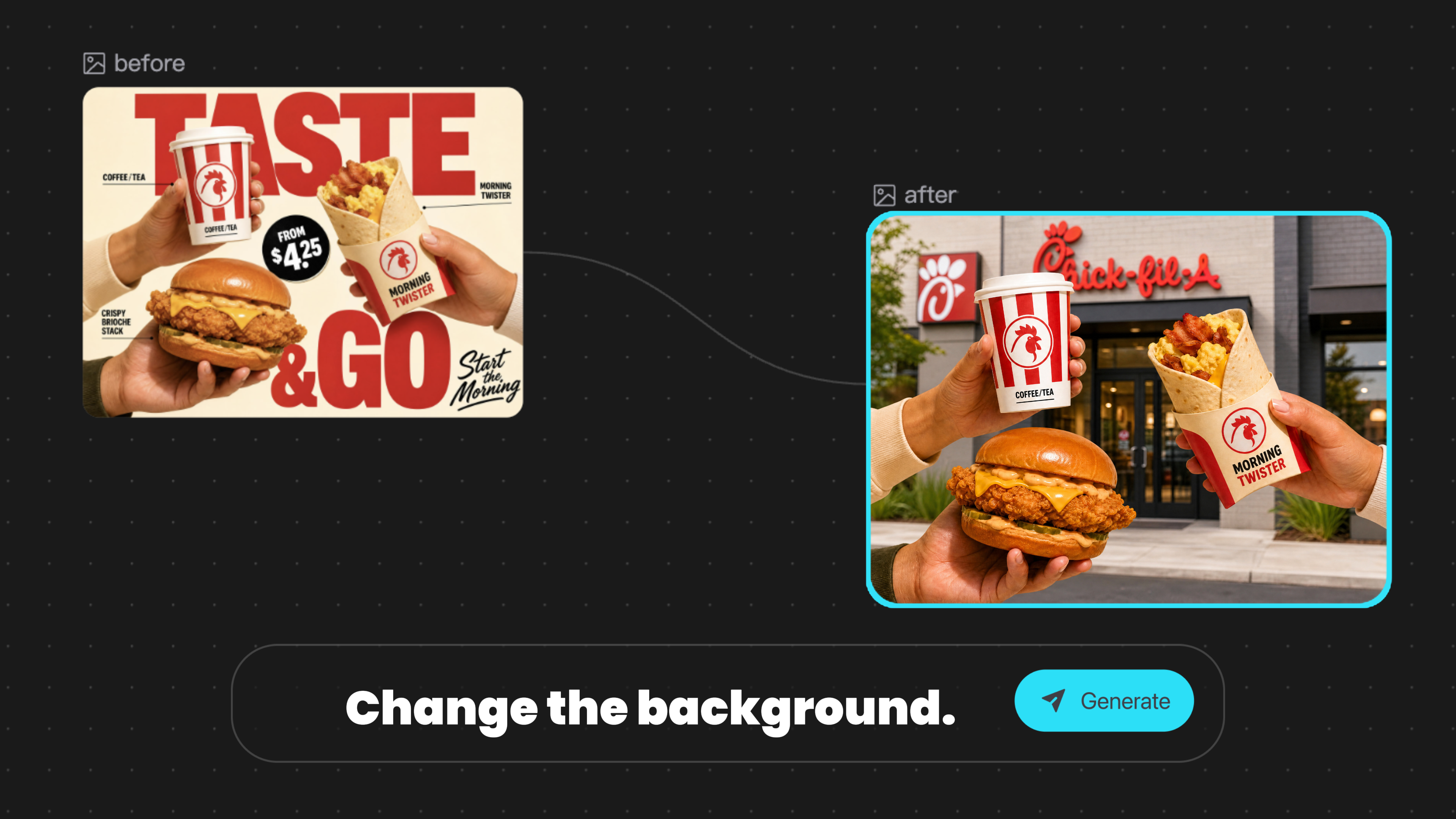
Product Photo into a New Scene

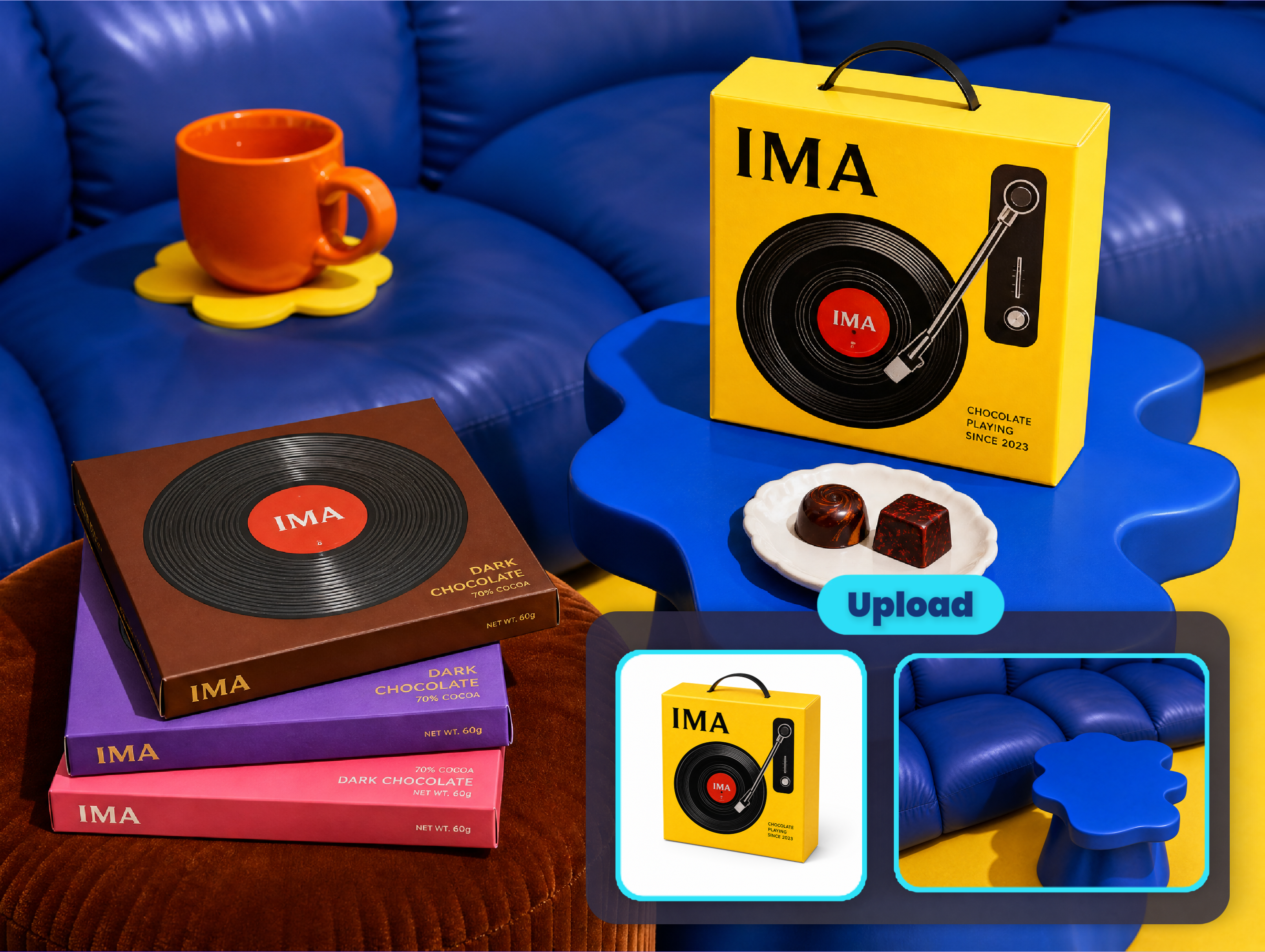
Case record: Input — a product or subject reference plus a scene or background reference. Prompt — “Place the subject from image A in the setting from image B; keep the subject shape, camera angle, and key visual details recognizable.” Model — GPT Image 2. Output — one generated image using the selected aspect ratio. Generation time and credits are shown by the current task and vary by account and settings.
02

Subject and Background Compositions

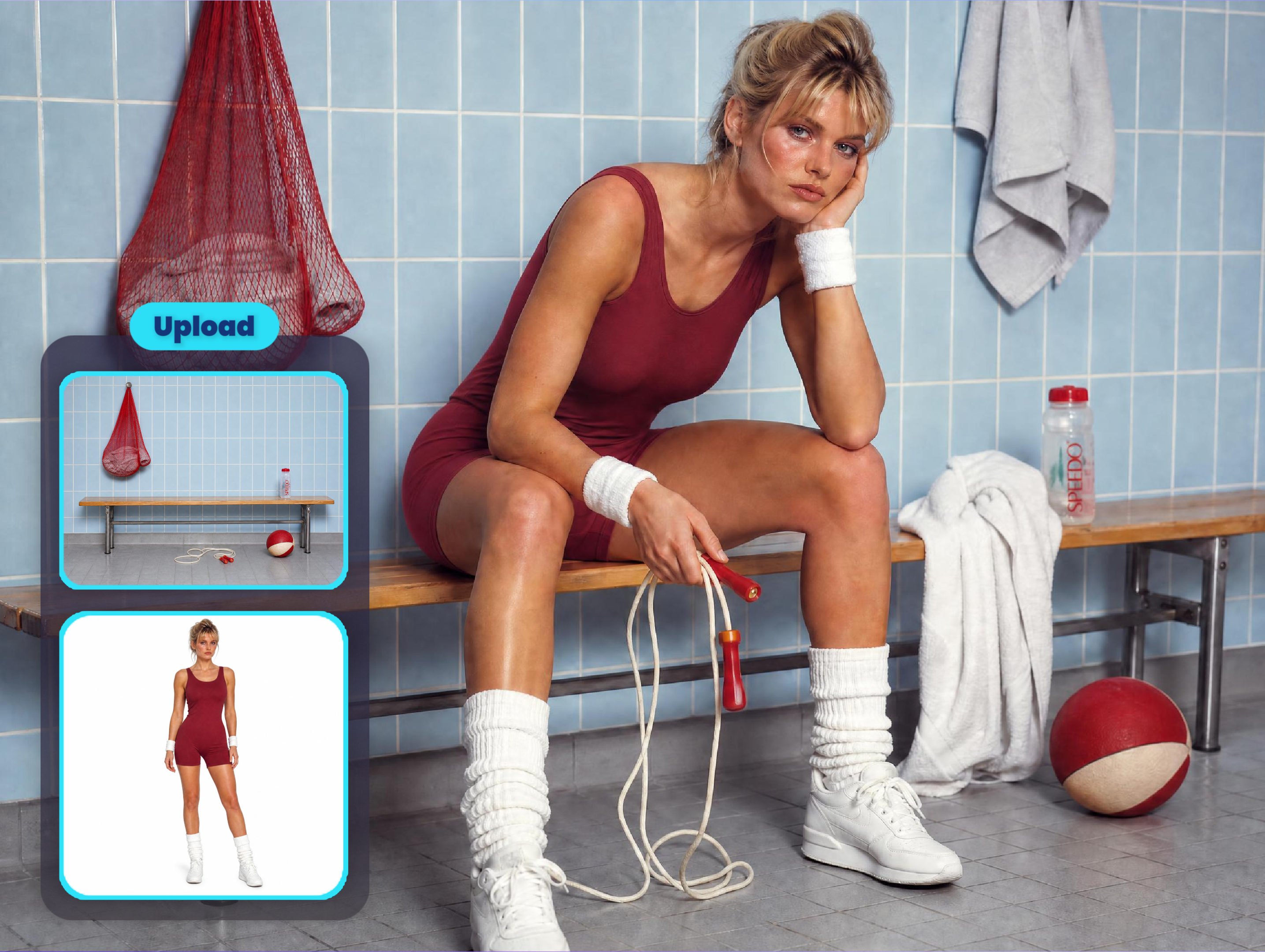
Place a person, object, or product into a different environment by describing scale, position, perspective, lighting direction, shadows, and the parts that must remain unchanged. This replaces an early composite draft, not a guaranteed final retouch.

03

Comparison and Before-and-After Drafts

Create a first-pass comparison, transformation layout, or side-by-side concept from reference images. State the reading order, spacing, labels, and aspect ratio, then verify text and alignment before publishing.

04

Creative Reference Blending

Combine visual ideas from several references into a moodboard-style concept, campaign direction, thumbnail, or poster draft. Keep the prompt focused on the visual relationship instead of asking for too many unrelated changes at once.

05

When Another Tool Is Better

Use a manual editor for exact layers, masks, typography, dimensions, or brand geometry; use a background remover for a clean cutout; and use a dedicated layout tool when the final asset must follow a locked template.

Choose the Workflow That Matches the Job

The right tool depends on the constraint. Use GPT Image 2 when you need a new composition from a small set of visual references; switch workflows when precision, cutouts, or fixed layouts matter more than speed.

Choose the Workflow That Matches the Job
Use the AI Image Combiner for New Compositions

Best when two or three references need to become one scene, concept, product visual, comparison draft, or creative direction.

Use a Manual Editor for Pixel-Level Control

Best when masks, layers, typography, exact spacing, dimensions, and brand geometry must remain locked.

Use Background Removal for Clean Cutouts

Best when the task is simply to isolate a product, person, logo, or object from its original background.

Use a Dedicated Layout Tool for Locked Templates

Best when a channel template, legal copy, product specification, or exact export format cannot move during production.

AI Image Combiner FAQs

Explore more AI tools and creative examples

Combine Two Reference Images into One Visual

Upload a product, subject, background, or layout reference, describe the task and constraints, then review the first generated direction in ImaStudio.