Unrestricted AI
Unrestricted AI X-ray Generator
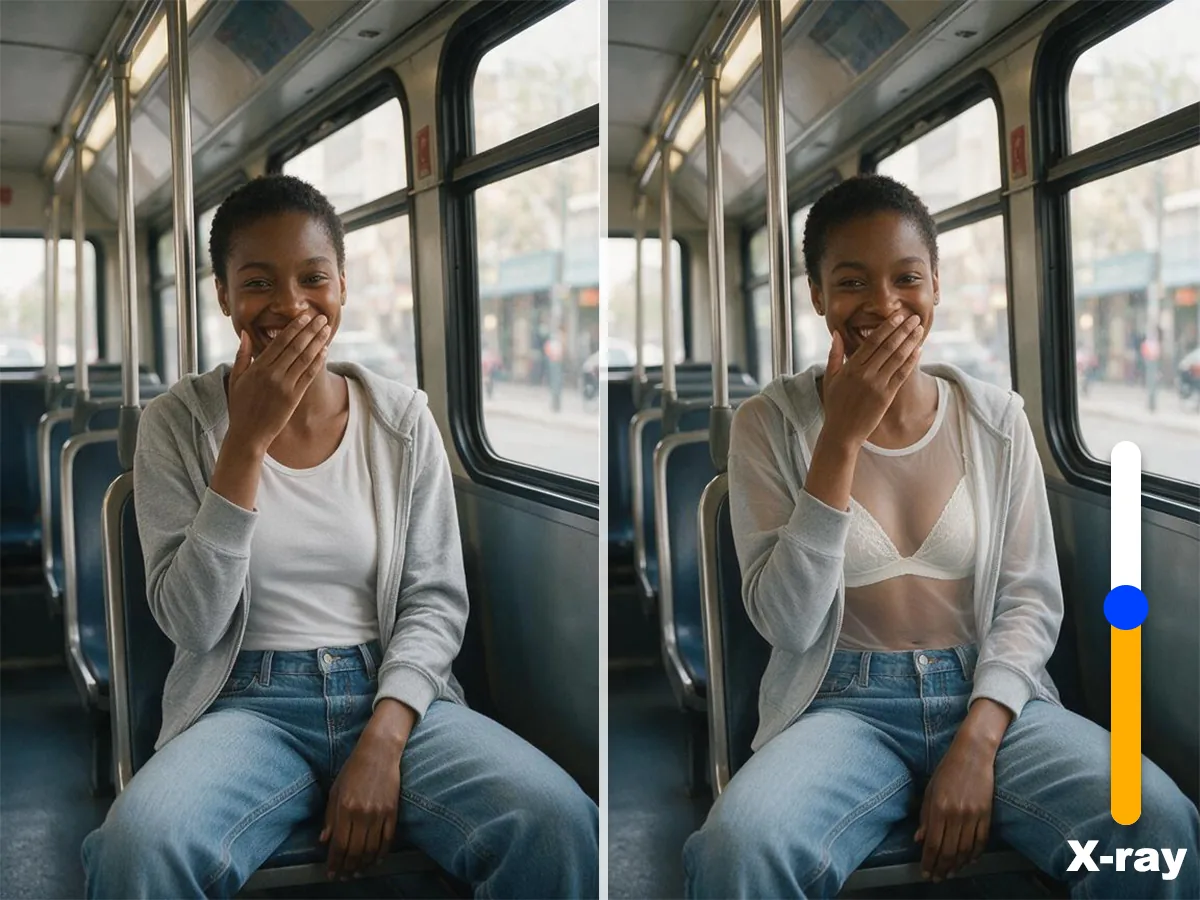
Turn an authorized adult portrait into a controlled X-ray clothing effect for images or videos while preserving identity, pose, lighting and scene.
Create freelyStart with a case, choose your X-ray direction
Compare the effect, movement, and camera relationship first, then upload a reference, choose a ratio, and continue in Creation.
Create an AI X-ray Effect in Three Moves
 Step 1Choose an Adult Portrait
Start with a clear image of an adult subject that you own or have permission to edit.
 Step 2Choose the Transparency Direction
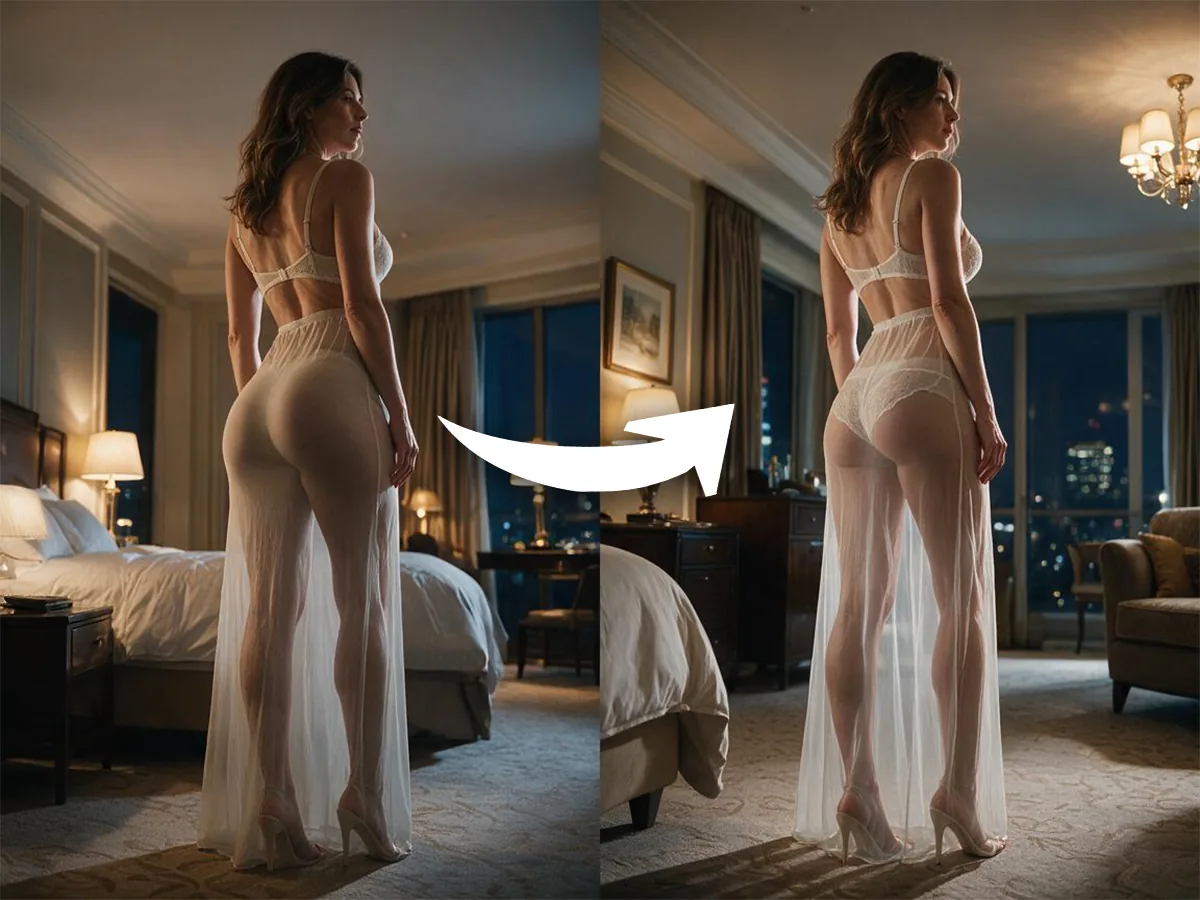
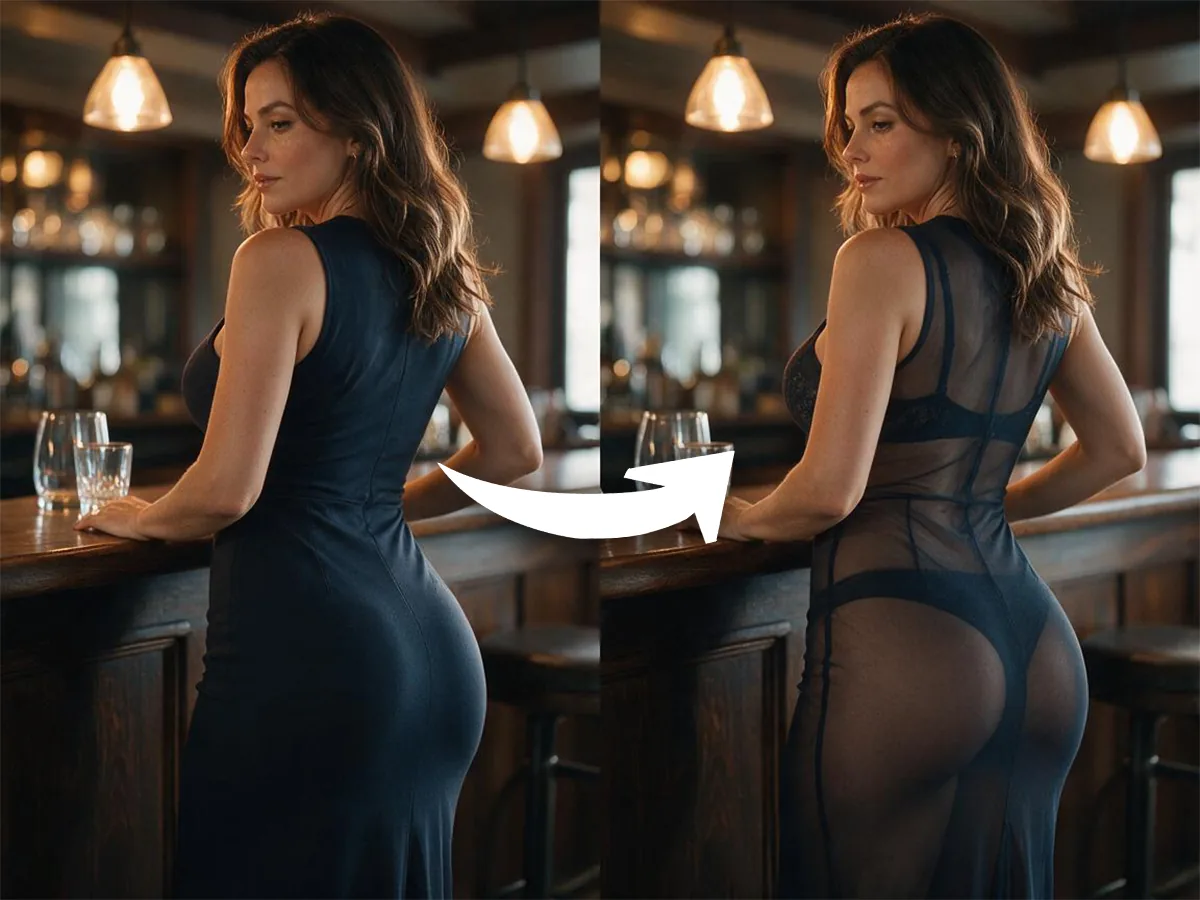
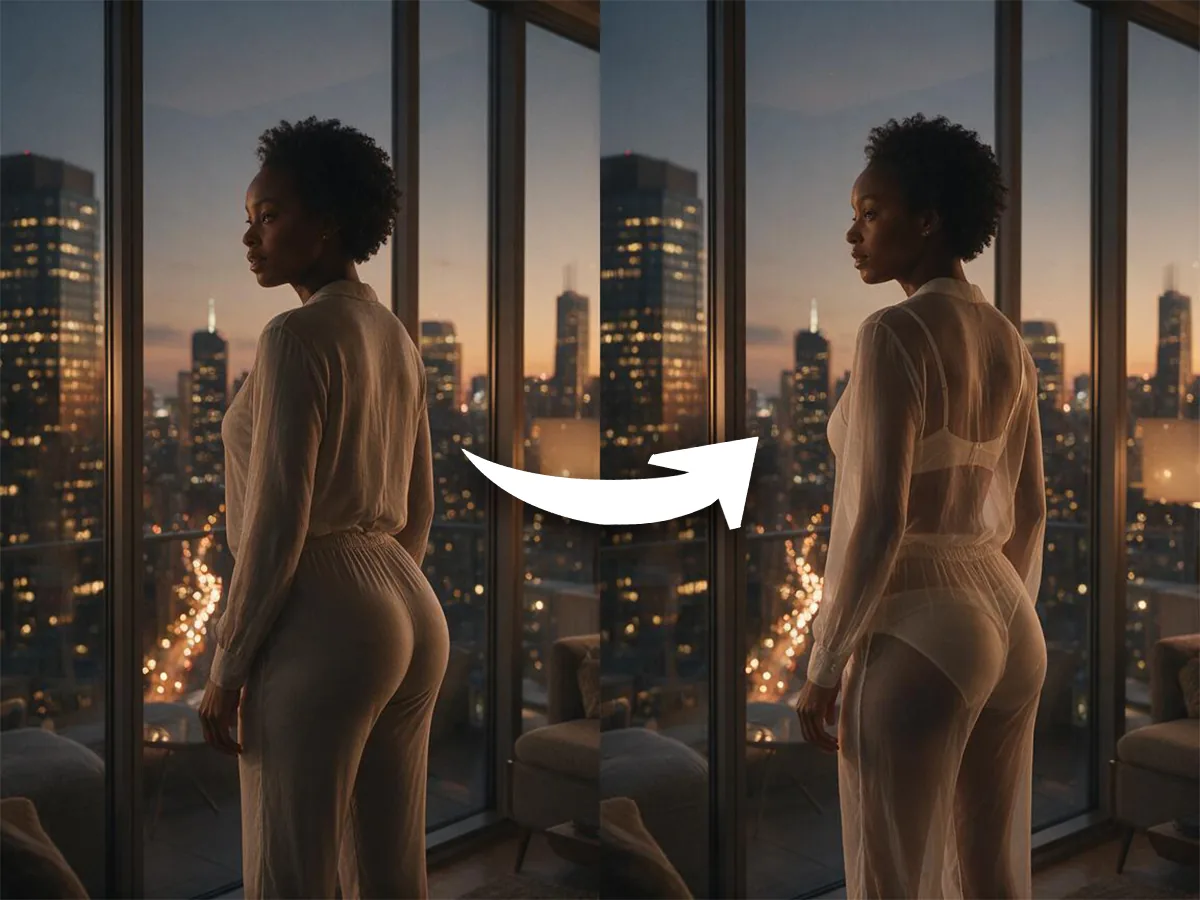
Pick a case that matches the strength, scene and movement you want to create.
 Step 3Generate and Continue in Creation
Choose the output ratio, launch the task and continue refining the result in Creation.
Control the Effect Without Losing the Shot
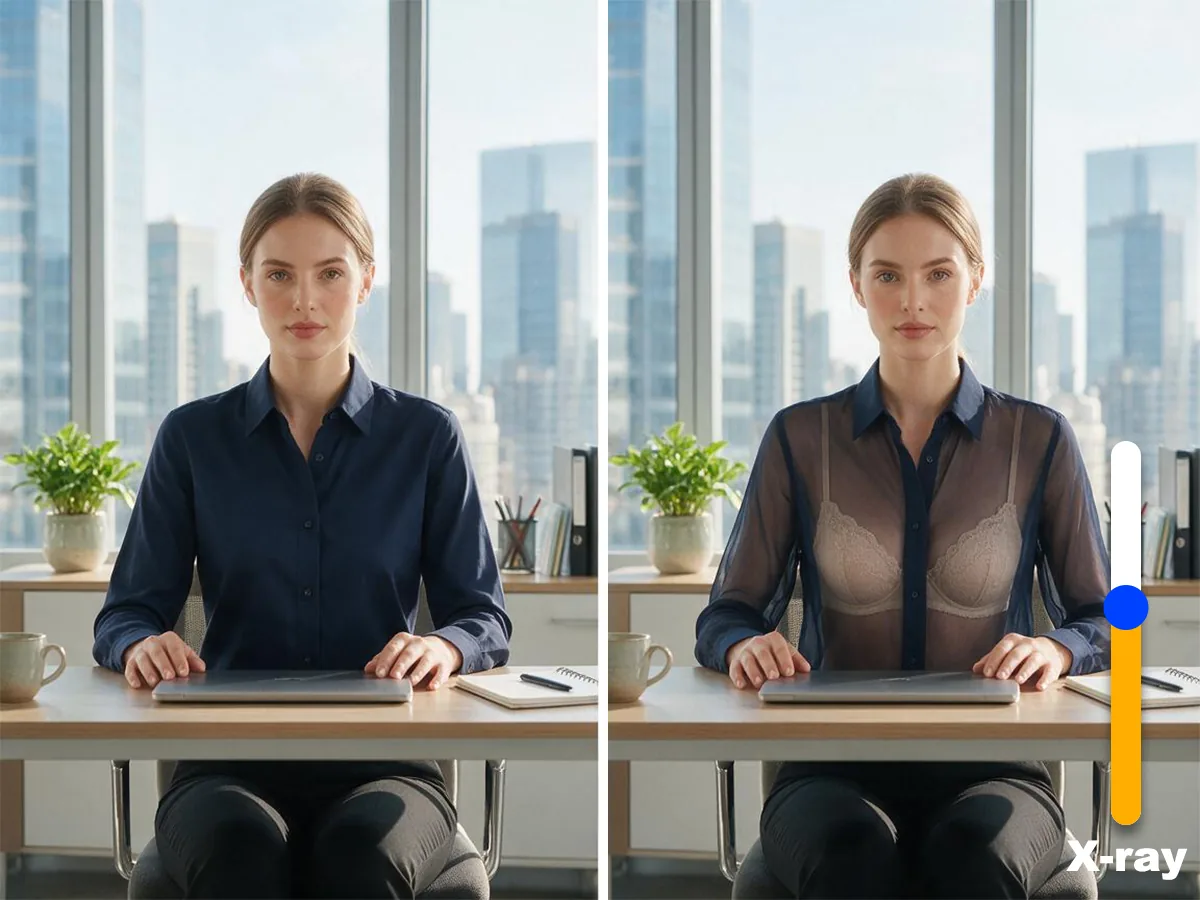
Adjust the Transparency Direction
Move from a subtle sheer look to a stronger X-ray effect while keeping the visual treatment controlled.
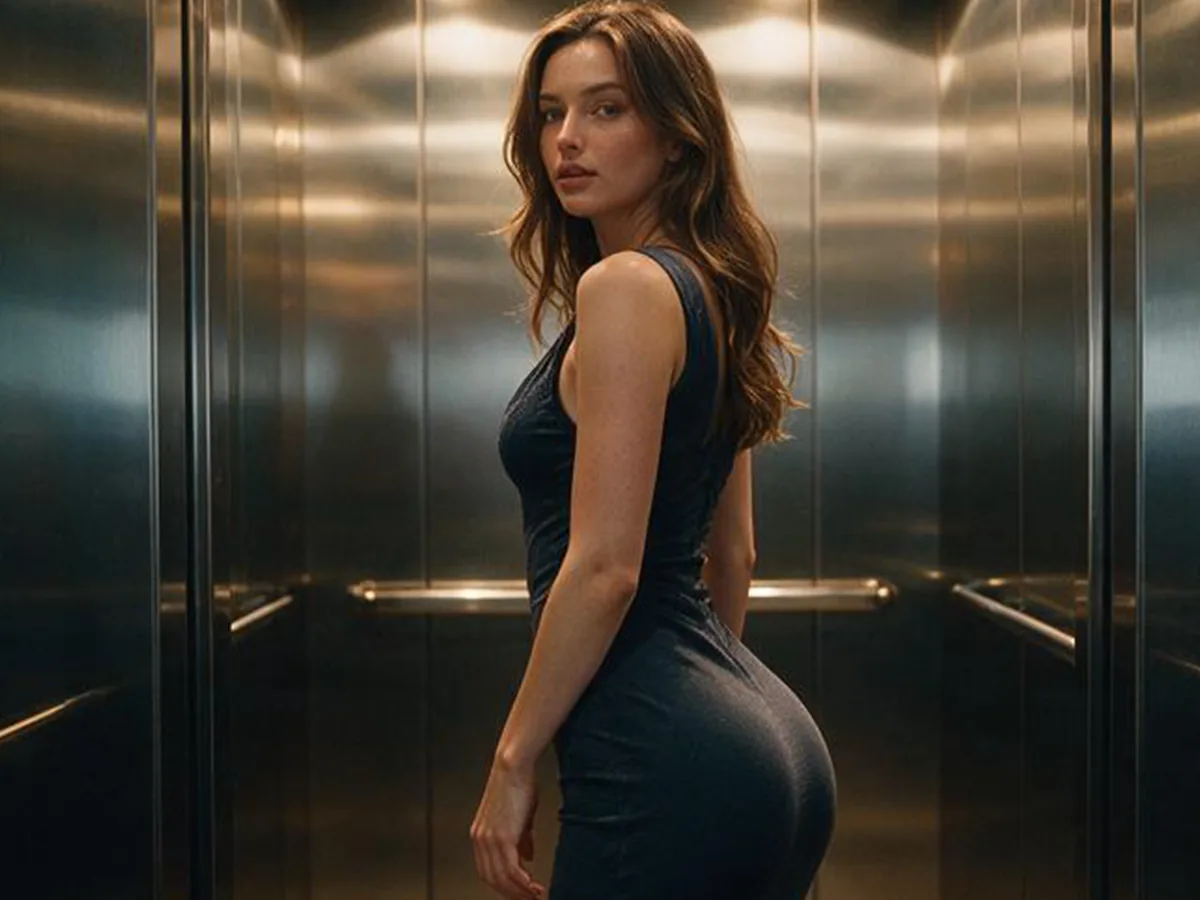
Preserve Identity and Pose
Keep the face, body proportions, posture and camera angle aligned with the uploaded portrait.
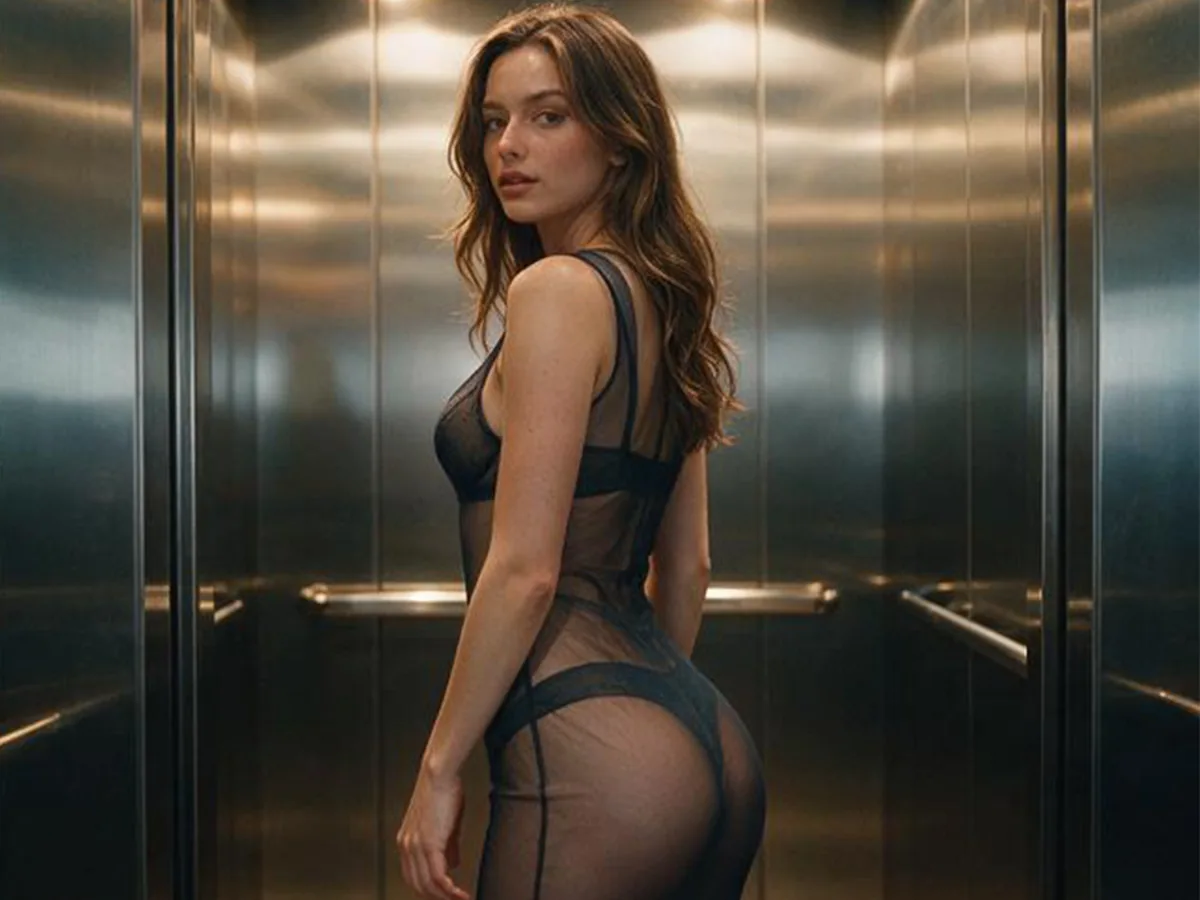
Keep Lighting and Scene Coherent
Retain shadows, reflections, background depth and scene relationships as the clothing effect changes.
Create Still or Moving Results
Use image cases for a fixed frame or video cases for a smooth transformation with continuous motion.
Why Create AI X-ray Effects in ImaStudio
Start from a real case, control the output ratio and continue the task in the same Creation workspace.
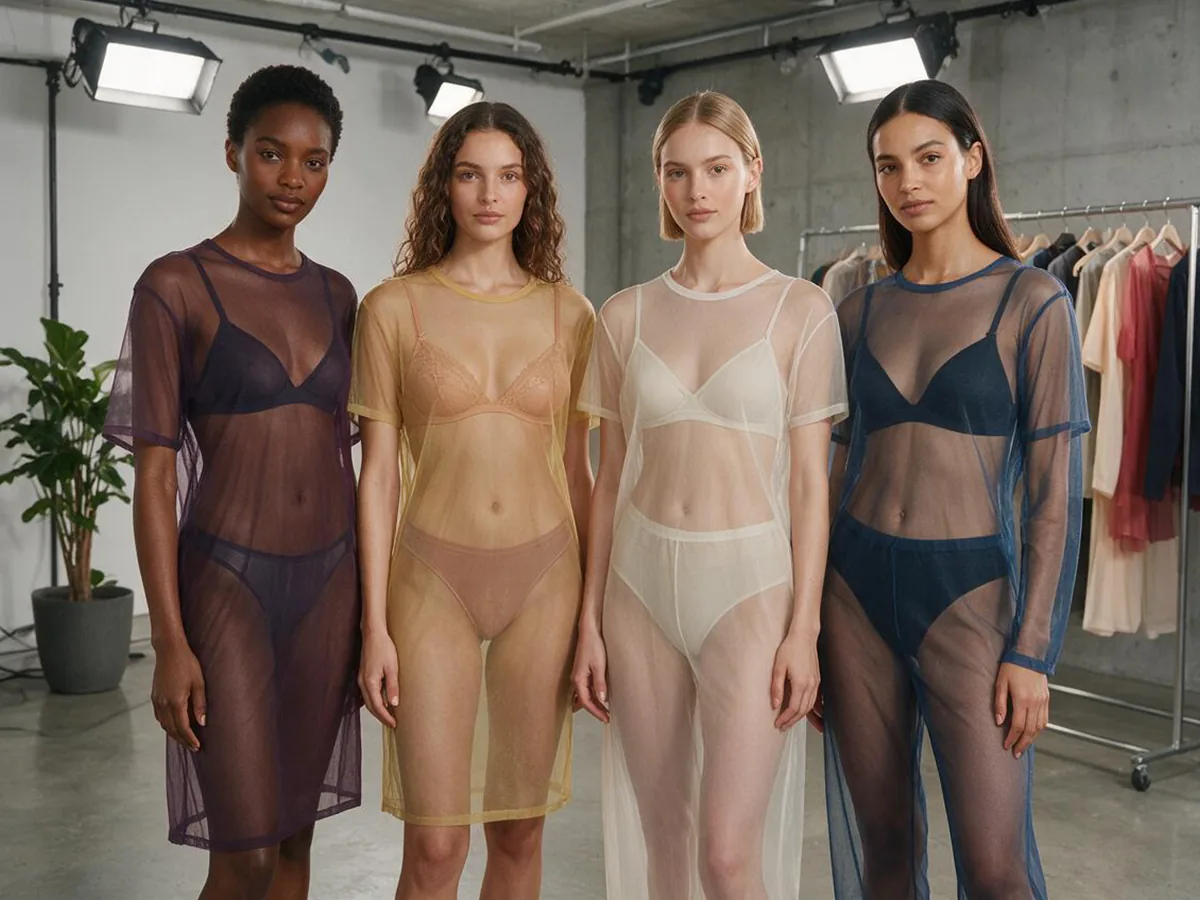
Preview the visual direction before uploading, so you know what kind of result each case is designed to create.
Prepare the reference and ratio first. Sign-in is handled only when the generation task needs to start.
The selected case determines the matching image or video task while keeping the same simple launch flow.
After launch, review task progress and continue refining the result in the Creation workspace.
AI X-ray Generator FAQs
Explore more AI tools and creative examples
Choose a Case and Create Your X-ray Effect
Upload an authorized adult portrait, select the output ratio and continue the task in Creation.